
Appearance
AI Summary and Metrics Sections
Quick Answer
AI Summary and AI Metric Tiles are prompt-driven sections that appear in Location Analytics and Shape Detail View. Assign a saved prompt from your library to generate AI-written narrative or structured metrics for each site. Responses are cached project-wide and reused on subsequent visits; use Refresh response in the section settings to force a new generation.
What These Sections Are
| Section | Output |
|---|---|
| AI Summary | Markdown narrative produced by the LLM based on the site's analytics data |
| AI Metric Tiles | Structured metric cards (numbers, labels, change indicators) from the LLM |
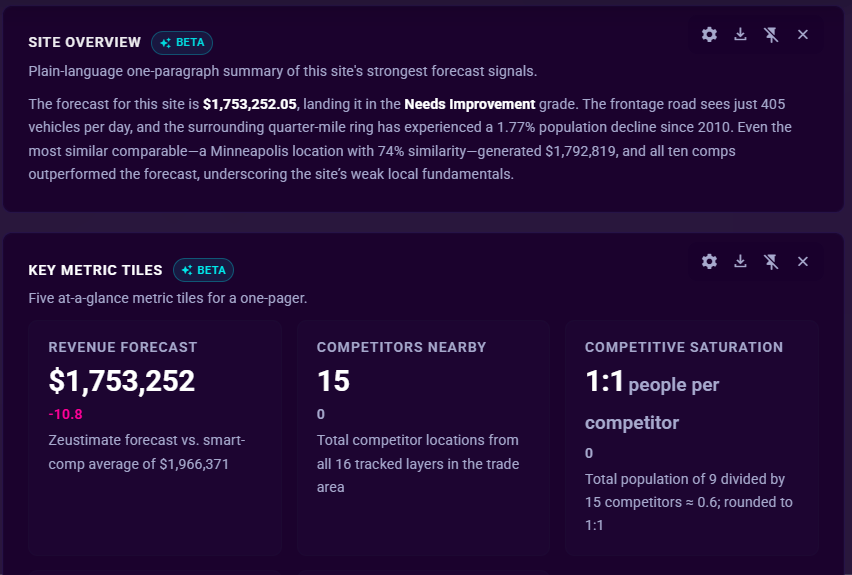
Both sections appear in:
- Location Analytics tab (opens automatically when you click a site on the map)
- Shape Detail View (opens when you select a polygon shape)
- Deep Dive view template (a built-in report view that includes AI sections pre-configured with system prompts)
They are blank until a prompt is assigned. A team member with template access can assign a prompt via the report template editor, or you can assign one directly from the section settings dropdown.
Assigning a Prompt
- Hover over the AI section header in Location Analytics or Shape Detail View.
- Click the settings icon in the section control strip (appears on hover).
- Click Change prompt.
- Select a prompt from the Prompt Library.
- The section begins generating immediately.
To create or manage prompts, open the Prompts tab from the left sidebar. See Using the Prompt Library.
How Loading Works
AI sections wait for all other analytics sections on the tab to finish loading before calling the LLM. This ensures the prompt receives a complete data snapshot — demographics, revenue metrics, smart comps, variable impact, mobile data, trade area, and traffic all settled — rather than a half-loaded subset.
While waiting, the section shows a thinking loader. Once all sibling sections have reached a terminal state (loaded, empty, or errored), the AI section fires and renders the result.
A 20-second safety valve prevents a stalled section from blocking AI generation indefinitely. If any section has not resolved within 20 seconds, the AI sections proceed with whatever data is available.
Response Cache
AI section responses are cached project-wide. The cached response is shared across all users and devices on the same project.
When a cache hit occurs: Reopening a site you have visited before returns the cached result instantly, without calling the LLM again, as long as the inputs that affect the answer have not changed.
What the cache key covers — changes to any of these trigger a fresh generation:
- Which prompt is assigned, and whether its body was edited since the last run
- Which site or shape the section is displaying
- The active trade area selection
- The active revenue mode (actual vs. forecast)
- The AI model used for the section (defaults to Zeus.ai Secure when not explicitly set)
The cache stores one result per (section type x prompt x site). Recomputing overwrites the existing entry rather than appending a new one, so the cache does not grow unbounded.
Refreshing the Response
To force a fresh LLM call (bypassing and overwriting the cached result):
- Hover over the AI section header.
- Click the settings icon in the section control strip.
- Click Refresh response.
The section resets to the thinking loader and generates a new response. The new result overwrites the project-shared cache so all project users see the updated answer on their next visit.
When to use Refresh response:
- The underlying data changed but no automatically-keyed input (trade area, model, prompt body) changed.
- You want a freshly worded result.
- A cached response appears stale for reasons outside the automatic invalidation inputs.
Model Used for AI Sections
AI Summary and AI Metrics sections run on one of six block-offered models — Claude and Gemini models are available here too, not just DeepSeek:
- Claude Haiku 4.5
- DeepSeek V4 Pro
- DeepSeek V4 Flash
- GPT-5.4 Mini
- Gemini 3.5 Flash
- Zeus.ai Clean Room
Default (when no model is explicitly chosen): "Use my default model," which resolves at runtime to Zeus.ai Secure (Third-Party) — a distinct catalog entry from "DeepSeek V4 Pro" above, though it also runs on DeepSeek infrastructure under no-retention terms. Zeus.ai Secure is not itself one of the six named options below; it's the implicit fallback, not a dropdown choice.
When you assign a prompt to an AI Summary or AI Metrics section, the model dropdown in the Prompt Library editor shows all six named options above. A prompt saved with an older/removed model selection is automatically treated as "Use my default model" (resolving to Zeus.ai Secure) when the section executes.
This does not affect the chat assistant — the full multi-provider model catalog remains available there. See Choosing an AI Model.
Tips
- If the AI section shows "thinking" longer than usual on first load, it is waiting for a slow section (mobile data or traffic) to settle before firing the prompt. This is expected and ensures a complete answer.
- Editing a prompt's body in the Prompts tab invalidates the cache for every site using that prompt; the next visit to each site generates a fresh response.
- Changing the trade area or toggling the revenue mode also invalidates the cache and triggers a recompute automatically.
Troubleshooting
Report blocked with "has no prompt selected"
When running a report from a view that contains AI sections, the run is blocked before it starts if any AI section has no prompt configured. The preflight error reads:
Report cannot run: AI Summary has no prompt selected. Edit this view and configure a prompt for each AI section, or use a different view.
This is a different state from the "thinking" loader. A section without a prompt can never resolve, so the run is blocked rather than left stalled.
To resolve:
- Open the report view that contains the AI section.
- Hover over the AI Summary or AI Metrics section header.
- Click the settings icon in the section control strip.
- Click Change prompt and select a prompt from the Prompt Library.
- Retry the report run.
Alternatively, switch to a different view that already has prompts configured — for example, the built-in Deep Dive view template, which ships with system prompts pre-assigned to its AI sections.
Section shows "thinking" but never renders
The 20-second safety valve releases the gate even if a section is still loading. If the result still does not appear after that window, try Refresh response or check your internet connection.
A frozen report viewer does not execute live prompts — AI sections in frozen reports display stored content only and do not call the LLM.
Cached response seems outdated
Use Refresh response to force a recompute. The new result overwrites the project-shared cache for everyone on the project.