
Appearance
Street View
Quick Answer
Street View lets you explore locations from ground level using Google's panorama imagery. On desktop, drag the Pegman control onto Street View coverage. On mobile, tap the Pegman button to enable Street View mode, then tap a covered location.
How To Enter Street View
Desktop
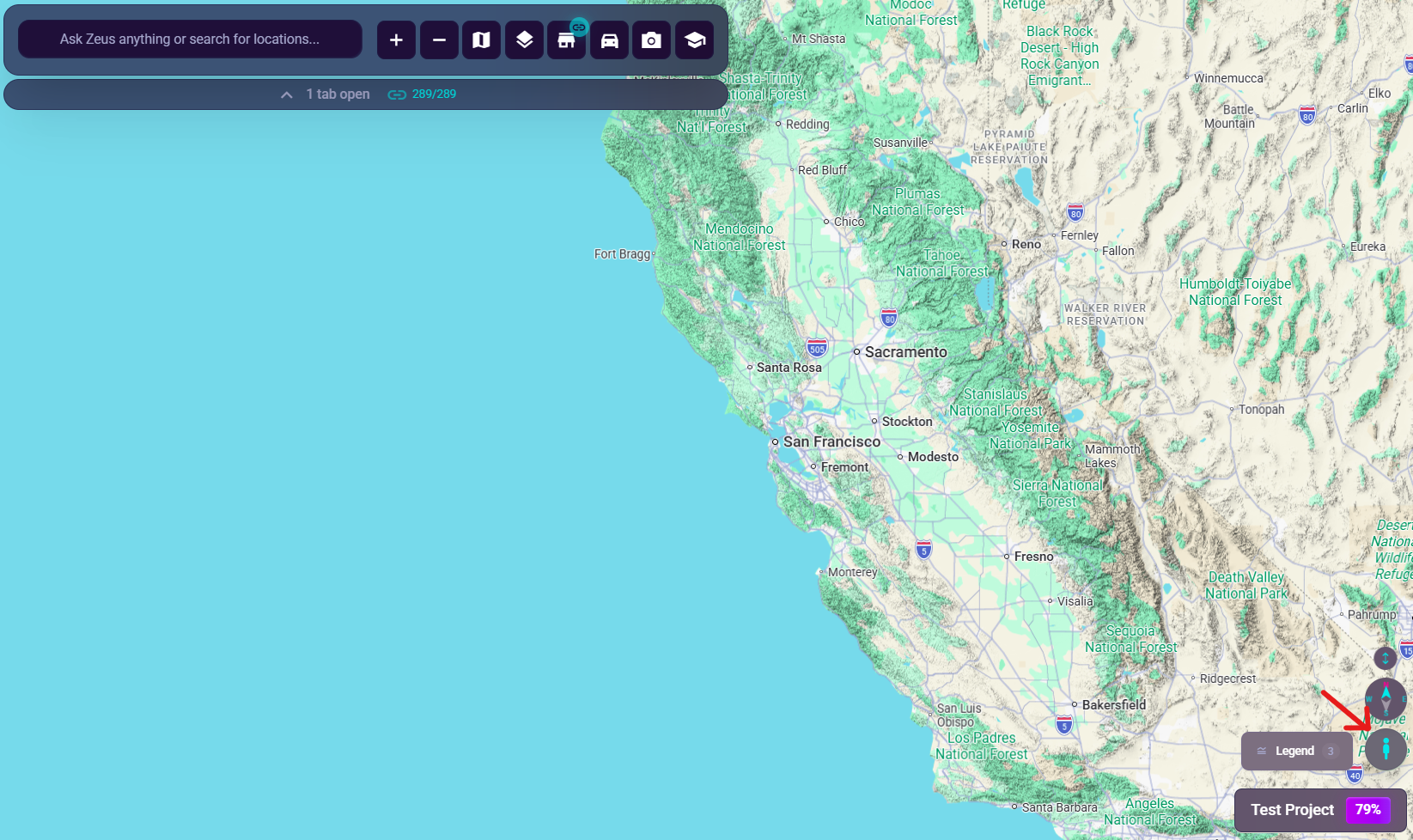
- Find the Pegman button in the floating desktop map controls
- Drag it onto the map
- Drop it on available Street View coverage
- Street View opens at that location
Mobile
- Tap the Pegman button in the floating mobile controls
- Street View coverage appears on the map
- Tap a covered location
- Street View opens there
How To Move Around
Once Street View is open, you can:
- drag or swipe to look around
- use the panorama arrows to move along covered roads
- use supported zoom controls inside the panorama
How To Exit
Desktop
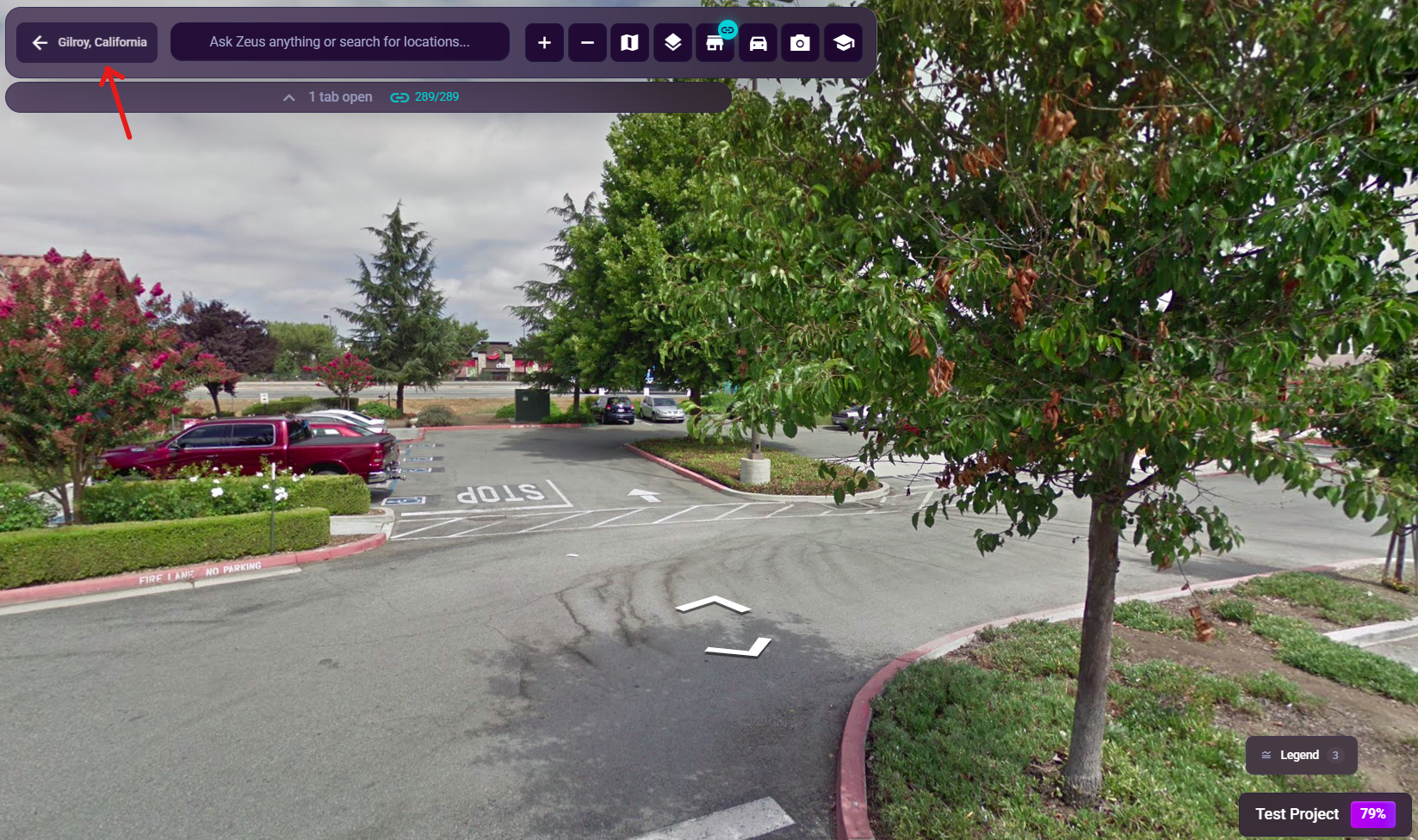
Use the chat-bar back button. When Street View is active, that control changes to Back to Map and can also show the current address.
Mobile
Use the top-left back button. When Street View is active, it changes to Back to Map.
Current Street View Behavior
- Zeus.ai restores your prior map context when you exit Street View
- Street View state can be cached and restored when you come back
- Cached Street View state expires after 24 hours
Mobile Motion Tracking
On supported mobile devices, Street View can use motion tracking so you can look around by moving your device. If the control is available in Street View, enable it and then tilt or rotate your phone to explore.
Resizing
Street View can be resized so you can show more or less of the panorama. Zeus.ai remembers your preferred Street View size separately for desktop and mobile layouts.
Street View in Reports
When a location report includes a Street View card, the report run captures and freezes:
- the camera heading, pitch, and zoom at the moment you click Run Report
- the section height you last resized the Street View panel to
Anyone who opens the shared report sees the panorama at that exact angle and size. The panorama stays fully interactive — viewers can look around from that starting position. Every new report run re-captures the live camera state, so adjusting the angle or resizing the section before running produces a fresh snapshot rather than reusing the prior run's position.
Tip: Position the camera before clicking Run Report to control what recipients see first.
Troubleshooting
No Street View Coverage
- Not every road or location has Street View imagery
- Try a nearby main road or a denser area
Can’t Enter Street View
- Make sure you dropped Pegman on coverage or tapped a covered location
- On mobile, make sure Street View mode is enabled first
Back To Map Not Obvious
- Desktop: check the chat-bar back button
- Mobile: check the top-left back button
Motion Tracking Not Working
- Check that your device supports motion sensors
- Some browsers may require permission
- Retry with the phone upright