
Appearance
Map Quick Adjustments
Quick Answer
Adjust map Brightness, Saturation, and Contrast sliders in the Base Map tab to fine-tune map appearance. These adjustments are only available on certain Raster themes.
Where to Find Adjustments
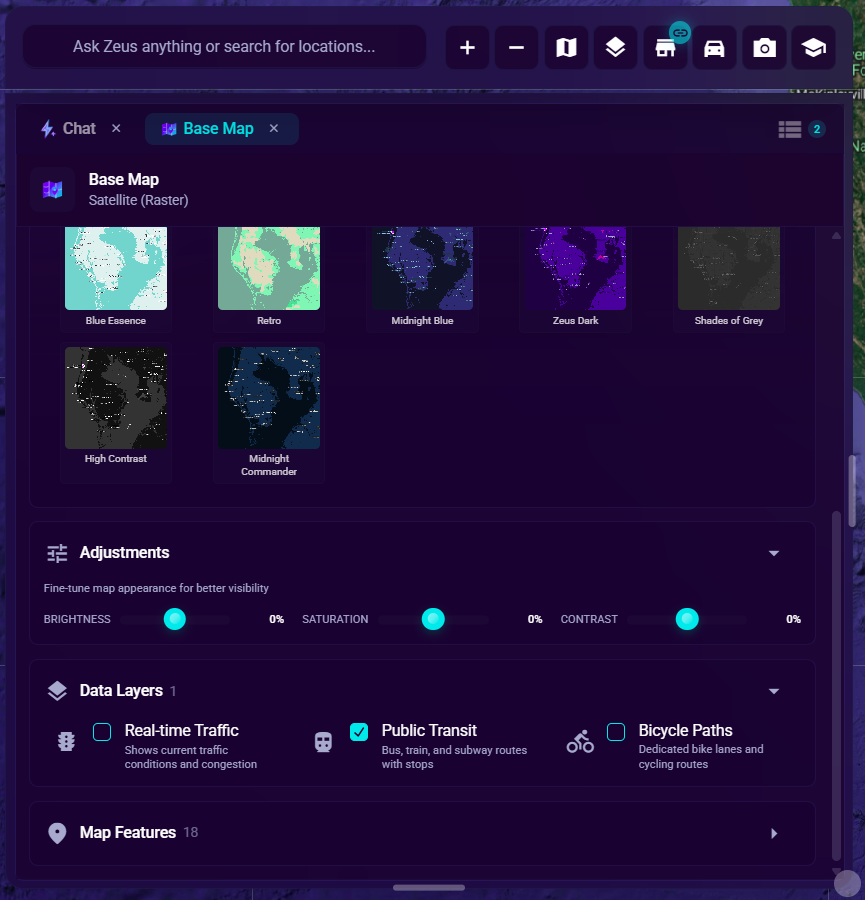
- Click the Base Map button (🗺️) in the chat bar
- Scroll to the adjustment sliders below the theme controls
- Use the sliders to adjust values
Available Adjustments
Brightness
What it does: Makes the map lighter or darker Range: -100% to +100% Default: 0%
| Value | Effect |
|---|---|
| -100% | Maximum darkness |
| -50% | Darker map |
| 0% | Default brightness |
| +50% | Lighter map |
| +100% | Maximum brightness |
Use cases:
- Darken for presentations in bright rooms
- Lighten to see road details more clearly
- Match your ambient lighting
Saturation
What it does: Adjusts color intensity (vivid vs muted) Range: -100% to +100% Default: 0%
| Value | Effect |
|---|---|
| -100% | Grayscale (no color) |
| -50% | Muted colors |
| 0% | Default saturation |
| +50% | More vivid colors |
| +100% | Maximum color intensity |
Use cases:
- Reduce saturation for a cleaner look
- Increase saturation to highlight features
- Go grayscale for certain presentations
Contrast
What it does: Adjusts the difference between light and dark areas Range: -100% to +100% Default: 0%
| Value | Effect |
|---|---|
| -100% | Flat, low contrast |
| -50% | Reduced contrast |
| 0% | Default contrast |
| +50% | Higher contrast |
| +100% | Maximum contrast |
Use cases:
- Increase contrast to make features pop
- Reduce contrast for a softer look
- High contrast helps distinguish boundaries
Availability
Themes That Support Adjustments
| Theme | Adjustments Available |
|---|---|
| Modern Roadmap (Raster) | ✅ Yes |
| Other styled raster themes | ✅ Yes (if custom styles) |
Themes That Don't Support Adjustments
| Theme | Reason |
|---|---|
| Satellite (Vector) | Uses cloud-based styling |
| Dark Roadmap (Vector) | Uses cloud-based styling |
| Any Vector theme | Vector maps use fixed cloud styles |
| Satellite (Raster) | Pure imagery, no style customization |
| Classic (Raster) | Basic theme without style support |
When Adjustments Are Disabled
You'll see a message like:
- "Adjustments not available for Vector maps (uses cloud styling)"
- "Adjustments not available for Satellite theme"
- "Adjustments not available for Classic theme"
The sliders will be grayed out and non-interactive.
Using Adjustments Effectively
For Better Visibility
Brightness: +20%
Saturation: -10%
Contrast: +30%
Makes road details and boundaries clearer.
For Presentations
Brightness: 0% to -20%
Saturation: -20% to -40%
Contrast: +20%
Professional, clean appearance that doesn't distract from data.
For Site Analysis
Brightness: Default (0%)
Saturation: Default (0%)
Contrast: +10% to +20%
Balanced view with slightly enhanced feature definition.
For Screenshots
Brightness: Adjust to match document background
Saturation: -10% to -20% (less distracting)
Contrast: +10% (sharper edges)
How the Sliders Work
Visual Feedback
- Slider thumb: Draggable handle
- Track fill: Shows current value relative to center
- Value label: Shows current percentage (e.g., "-20%")
Interaction
- Drag the thumb to adjust
- Click anywhere on the track to jump to that value
- Center (0%) is the default/neutral position
- Changes apply immediately to the map
Tips
Start Subtle
- Small adjustments (±10-20%) usually work best
- Extreme values can make the map hard to read
- Return to 0% if you're unsure
Combine Adjustments
- Adjustments work together
- Example: Lower saturation + higher contrast = clean, defined look
- Experiment to find your preference
Context Matters
- Adjust based on your room lighting
- Consider how your data (markers) will appear
- Test with different zoom levels
Resetting Adjustments
To Reset All Adjustments
- Set each slider back to 0%
- Or switch to a different theme and back
- Adjustments return to defaults
Values Are Saved
- Your adjustments are saved per session
- Theme-specific - each theme has its own adjustment state
- Switching themes doesn't affect other themes' settings
Troubleshooting
Sliders Are Grayed Out
- You're using a Vector theme (cloud-styled)
- You're using Satellite or Classic raster theme
- Switch to Modern Roadmap (Raster) for adjustments
Changes Don't Apply
- Wait a moment for the map to update
- Check if you're on a supported theme
- Refresh the page if issues persist
Map Looks Wrong After Adjusting
- Reset sliders to 0%
- Try smaller adjustments
- Some combinations may look unusual
Can't Find Adjustments Section
- Make sure you're viewing the Base Map tab, not Layers — click the Base Map button (map icon) in the chat bar
- Scroll down - adjustments are below theme selection
- Section may be collapsed if theme doesn't support it