
Appearance
Using @ Site Mentions
Quick Answer
Type @ to mention a specific location in your message. This tells the AI assistant exactly which site you're asking about.
What Are Site Mentions?
Site mentions let you reference specific locations directly in your message:
- Type @ to open the mention picker
- Or click the Add mention button in the composer
- Select a location from the list
- The location appears as a highlighted pill in your message
- The assistant knows exactly which site you mean
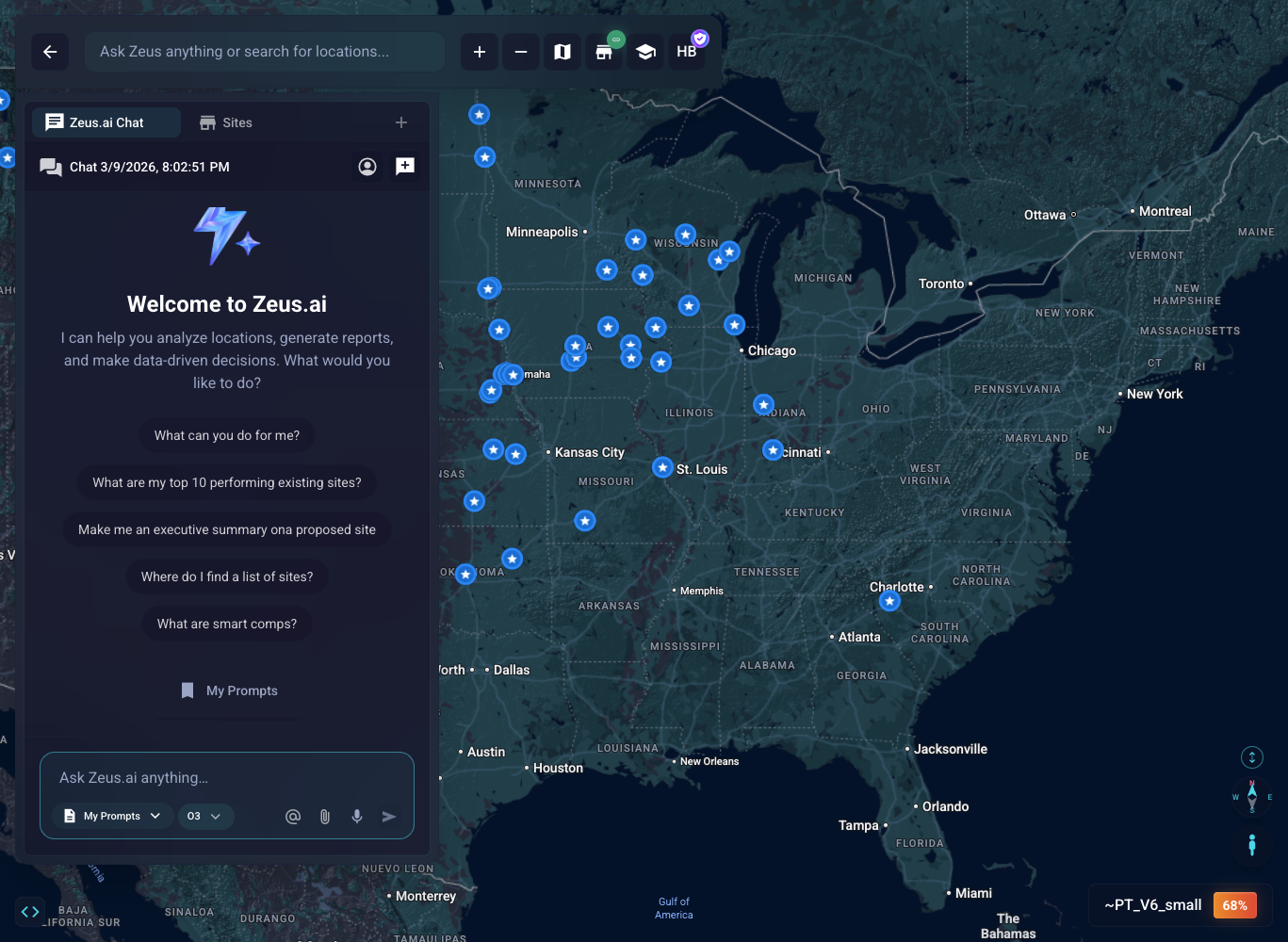
How to Use Site Mentions
Step 1: Type @
- While typing your message, type the @ symbol
- A dropdown menu will appear with available locations
Step 2: Search or Browse
- Start typing a location name to filter
- Or scroll through the list of recent/available locations
- Locations show name, address, and type
Step 3: Select a Location
- The top result is pre-highlighted — press Enter immediately to select it, or click any other row to insert that location.
- Use ArrowDown / ArrowUp to change which row is highlighted before pressing Enter.
- The location appears as a styled pill/badge
- Continue typing your question
Step 4: Send Your Message
- Complete your question
- Press Enter or click Send
- The assistant will analyze that specific location
@-Mentions Take Over Search While You Type
When you type @ in the chat bar, the composer temporarily takes over the input.
- The universal site-search dropdown that normally appears for plain text is hidden while you are composing a mention (anything matching
@tokenat the start of a word). - This keeps the mention picker as the only dropdown in view, even on mobile where both lists used to compete for the same screen space.
- If you press Enter on an
@tokenthat you never picked from the dropdown, the message is sent to chat as plain text. It is not routed to the place-search pin flow. - Email addresses such as
email@example.comdo not trigger this behavior — the universal search still runs because the@is in the middle of a word.
To leave the mention picker, press Escape, delete the @, or click outside the dropdown. The universal search will reappear as soon as your text is no longer an active @ mention.
Mention Pills Keep Their Icons
Each site mention renders as a pill with a colored map-marker icon that matches the site type:
- The icon stays consistent across the composer chip, the mention picker, the live chat bubble, and the bubble you see when reopening the thread later.
- The icon is persisted with the message, so reloading the conversation or viewing it on a different device shows the same icon.
- If a site loses its icon for any reason (for example, a site type was changed), the pill falls back to a letter avatar using the first character of the site name.
Example Messages with Mentions
Asking About a Specific Site
Tell me about @Highland Park StoreComparing Sites
Compare @Highland Park Store with @Downtown DallasAsking Analytics Questions
What's the Zeustimate for @123 Main Street?Benefits of Using Mentions
| Benefit | Explanation |
|---|---|
| Precision | The assistant knows exactly which location |
| Context | Location data is automatically included |
| Speed | No need to search first |
| Clarity | Clear reference in your conversation |
Tips for Effective Mentions
Be Specific
- Select the exact location from the dropdown
- Don't just type a name without selecting
One at a Time
- Mention one site for analysis questions
- Mention multiple for comparison questions
Combine with Questions
Good:
- "@Highland Park what are the demographics?"
- "Compare @Site A and @Site B"
Less effective:
- "@Highland Park" (no question)
Troubleshooting
Mention Picker Not Appearing
- Make sure you typed @ (at symbol)
- Wait a moment for the dropdown to load
- Try typing a few letters after @
Location Not in List
- The location may need to be searched first
- Try using searchLocations to find it
- Then mention it in follow-up questions
Mention Not Working
- Ensure you clicked to select from the dropdown
- Just typing @LocationName without selecting may not work
- Delete and re-type @ to try again
Pill Has No Icon
- The site type may have changed since the message was sent — the pill falls back to a letter avatar in that case
- Start a new mention by deleting and retyping
@so the picker can re-resolve the site
Universal Search Doesn't Appear While Typing
- This is expected if your text starts with
@— the mention picker is showing instead - Delete the
@to bring the universal site search back
Mentioned Sites in Responses
Assistant responses may include clickable location references or location-specific UI actions. When they do, they can be a fast way to open related site context without searching again.
When to Use Mentions vs Search
| Scenario | Use Mention | Use Search |
|---|---|---|
| You know the exact location | ✅ | |
| Location is in your recent list | ✅ | |
| You need to find locations | ✅ | |
| Filtering by criteria | ✅ | |
| Asking about a found location | ✅ |