
Appearance
Using the AI Chat Assistant
Quick Answer
Click in the chat input at the bottom-left of your screen, type your question, and press Enter. The AI assistant can help you find locations, analyze sites, learn how to use Zeus.ai, and use tool-backed workflows for scorecards, Site Sonar, traffic, map actions, and reports.
Where to Find the Chat
Location
The chat starts in the chat bar at the bottom-left of your screen:
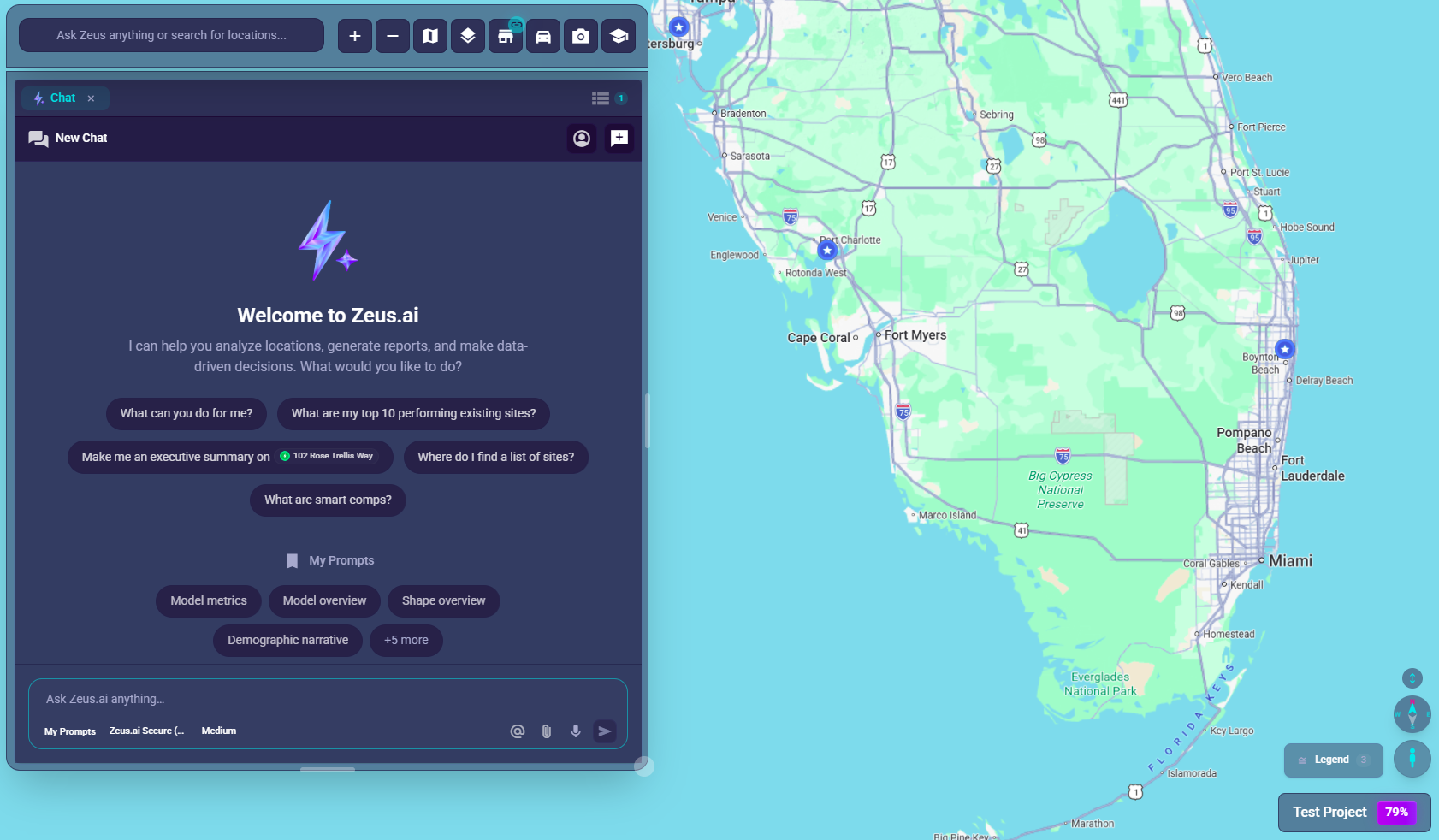
┌───────────────────────────────────────────────────────────────┐
│                          MAP                                   │
│                                                               │
├───────────────────────────────────────────────────────────────┤
│ [←] [Ask Zeus anything or search for locations...] [+][-][🗺️][🏪] │
│          ▲                                                    │
│          └── Click here to type your question                 │
└───────────────────────────────────────────────────────────────┘
How to Start Chatting
- Find the chat bar at the bottom-left
- Click the input field that says "Ask Zeus anything or search for locations..."
- Type your question
- Press Enter or click the send button (➤)
- Read the response that appears
What You Can Ask
🔍 Location Search
Ask the AI to find locations:
- "Show me proposed sites in California"
- "Find locations with revenue over $2 million"
- "Search for Site #1234"
- "Which sites are in the Consideration status?"
📊 Analytics Questions
Ask about specific locations:
- "What's the Zeustimate for this location?" (after selecting one)
- "Show me the demographics for Store #456"
- "Why does this site have a high score?"
- "What factors are most important for this location?"
🧰 Tool-Powered Workflows
Ask the AI to use product tools when you want an action or data-backed workflow:
- "List the scorecards available in this project"
- "Evaluate this location with our default scorecard"
- "Show the top Site Sonar results for this market"
- "Get traffic detail for the road next to this site"
- "Search the Help Center for Site Sonar setup"
- "Generate a report from this conversation"
❓ How-To Questions
Learn to use the platform:
- "How do I zoom the map?"
- "Where are the filters?"
- "What is a Zeustimate?"
- "Which map themes support 3D controls?"
📖 Definitions
Get explanations:
- "What does 'proposed site' mean?"
- "Explain variable importance"
- "What are smart comps?"
- "What is AUV?"
Chat Composer Features
When you click on the chat input, you'll see additional controls:
Model Selector
Choose which AI model powers your conversation:
- Zeus.ai Secure (Third-Party) (Default): 1M context, text and code. The global chat default — SiteZeus-paid third-party inference (data-handling disclosed in Model Selection).
- DeepSeek V4 Pro: 1M context, text and code. Max-thinking reasoning, direct-provider host.
- Zeus.ai Clean Room (🔒 Clean Room subscription): Two data-resident models running entirely inside the SiteZeus Azure tenant — Zeus.ai Clean Room (1M context, text-only) and Zeus.ai Clean Room (GPT-5) (272K context, images and PDFs). A lock icon appears in the picker when your account isn't entitled; contact your account team to enable.
- Claude (Anthropic): Opus 4.8 (1M) and Sonnet 4.6 (1M) for reasoning with images + PDFs; Haiku 4.5 (200K) for fast/cheap.
- OpenAI GPT: GPT-5.5 (1M), GPT-5.4 (1M), and GPT-5.4 Mini (1M) — flagship and fast variants with images, PDFs, and URL fetch.
- Gemini (Google): Gemini 3.1 Pro (1M) and Gemini 3.5 Flash (1M) — full multimodal with audio and video input.
Some model families require admin activation. Click the model dropdown in the composer to see what's available on your account. See Model Selection for the full catalog, capability matrix, and data-handling notes.
Additional Controls
| Button | Icon | What It Does |
|---|---|---|
| My Prompts | 📄 | Opens the prompt tools, including Quick Insert and Prompt Library management |
| Reasoning Effort | ⚙️ | 5-notch slider (Off → Max, Faster ↔ Smarter) — how much thinking the model spends |
| Mention | @ | Reference a specific site in your message |
| Attach | 📎 | Upload files (images, PDFs, CSVs) |
| Voice | 🎤 | Speak your question instead of typing |
| Send | ➤ | Submit your message |
| Stop | ⏹️ | Stop AI response in progress |
Chat Tab (Expanded View)
For longer conversations, open the Chat tab in the secondary workspace:
- Click the
Chattab in the workspace - Full conversation history is visible
- More room for reading complex responses
- Same input controls as the chat bar
Having a Conversation
Starting a Conversation
- Ask any question
- AI responds with an answer
- Ask follow-up questions
- Context is maintained throughout
Example Conversation
You: "Show me locations in Texas"
AI:  [Shows list of Texas locations]

You: "Which one has the highest revenue?"
AI:  [Identifies top performer]

You: "Tell me more about that location"
AI:  [Provides detailed analytics]
Context Awareness
The AI remembers:
- What you've asked before in this conversation
- Locations you've mentioned or selected
- Filters you've applied
- The current project you're in
Using Special Features
Site Mentions (@)
Reference a specific location directly:
- Type @ in your message
- A dropdown appears with locations
- Select the location you want
- Continue typing your question
- Example: "What's the Zeustimate for @Highland Park Store?"
File Attachments
Upload files for the AI to analyze:
- Click the attach button (📎)
- Select your file (image, PDF, CSV)
- Add a question about the file
- Send your message
Supported: Images, PDFs, text files, and for Gemini 3.1 Pro / 3.5 Flash, audio/video. The current upload control defaults to 20MB per file, up to 10 files attached at once.
Voice Input
Speak instead of typing:
- Click the microphone button (🎤)
- Allow browser microphone access (first time)
- Speak your question clearly
- Click again to stop recording
- Review and send
My Prompts (Favorites)
Save frequently used questions:
- Click the My Prompts button (📄 document icon)
- View your saved prompts in the Quick Insert dropdown
- Click one to insert it instantly into your message
- Click Manage to open the full Templates manager
Tips for Better Results
Be Specific
❌ "Tell me about locations" ✅ "Show me proposed sites in Texas with revenue over $1M"
Use Site Mentions (@)
When asking about a specific location:
- Click the @ button or type @
- Search for and select the location
- Ask your question with the location tagged
Ask One Thing at a Time
❌ "What's the revenue, demographics, and competitors?" ✅ "What's the predicted revenue?" → "What are the demographics?" → "Show competitors"
Give Context
❌ "Compare them" ✅ "Compare Store #123 and Store #456 by revenue"
Understanding AI Responses
Text Responses
- Plain explanations and answers
- May include bullet points or numbered lists
- Links to related topics
Location Results
When you search for locations:
- List of matching sites
- Key details for each
- Click to view on map
Analytics Summaries
When asking about a location:
- Zeustimate predictions
- Key metrics
- Insights and recommendations
Tool Indicators
You may see tool execution indicators when the AI is:
- Searching for locations
- Fetching analytics data
- Filtering results
- Looking up help content
- Working with scorecards, Site Sonar, or traffic data
- Updating the map or generating a report
Managing Conversations
Thread Management
- Each conversation is stored as a thread / conversation
- Start a new thread for new topics
- Previous threads are saved
Clearing Context
If the AI seems confused or the thread is getting too long, you have three options:
- Compact context: hover the context meter ring and click "Compact context" to summarize history while preserving the thread's knowledge
- Clear context: hover the meter and click "Clear context" to empty the thread entirely (your saved views and analyses are not affected)
- Start a new thread: gives completely fresh context with no history
Conversation History
- Past messages are saved
- Scroll up to see previous exchanges
- History persists across sessions
Troubleshooting
AI Not Responding
- Check your internet connection
- Wait a moment and try again
- Click the Stop button and retry
- Refresh the page if needed
Response Seems Wrong
- Try rephrasing your question
- Be more specific
- Start a new thread for fresh context
Can't Find Chat
- Look at the bottom-left of your screen
- Click the input field that says "Ask Zeus anything or search for locations..."
- Or open the
Chattab in the workspace
Voice Input Not Working
- Check browser microphone permissions
- Try Chrome for best voice support
- Speak clearly and reduce background noise
"Your Zeus.ai session expired" Message
If you see this message after a chat action (such as opening a project, fetching data, or running a search), your browser session has expired:
- Refresh the page (Ctrl+R / Cmd+R) -- this is usually enough
- If the error persists after refresh, log out and log back in
- Retry the action or question that triggered the message
Session expiry typically happens after a long period of inactivity or when a browser tab has been open for an extended time without a reload. The message confirms the action did not complete; no data was saved from that turn.