
Appearance
Location Clustering
Quick Answer
When many locations are close together, Zeus.ai can group them into clusters that show a count. Smart Clustering is controlled from the Sites tab (store icon in the chat bar).
What Clustering Does
Clustering helps by:
- combining nearby markers
- showing a count instead of overlapping pins
- reducing visual clutter
- improving map performance when many locations are visible
How To Open Clustering Controls
- Click the Sites button (store icon 🏪) in the chat bar
- Find the Sites section
- Use the Smart Clustering control
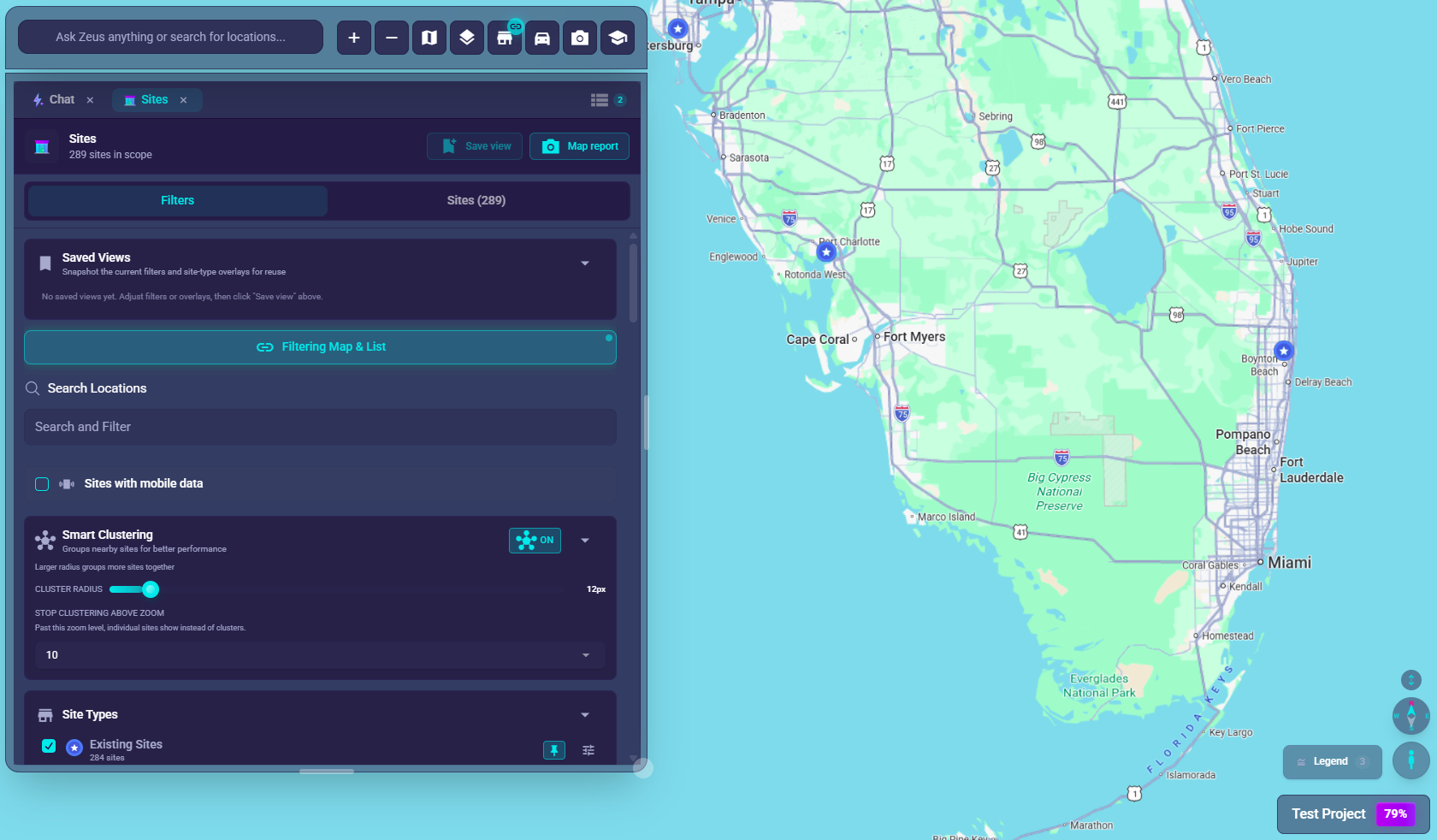
Smart Clustering Toggle
| Setting | Effect |
|---|---|
| ON | Nearby locations are grouped into clusters |
| OFF | Individual markers stay separate |
Important:
- Smart Clustering requires at least 10 visible points to turn on
- If clustering is off and you have fewer than 10 points, the toggle shows a warning and enabling is blocked
- If clustering is already on, you can still turn it off even with fewer than 10 points
Cluster Radius
When clustering is enabled, Zeus.ai shows a Cluster Radius slider.
- Smaller radius = more separate clusters
- Larger radius = more aggressive grouping
- The current radius is shown in pixels
- Changes apply immediately
How Clusters Behave
Zoomed Out
- more locations combine into clusters
- large groups are easier to scan
Zooming In
- clusters break apart into smaller groups
- more individual markers appear
High Detail View
- clusters reduce or disappear
- individual locations become easier to inspect
When To Use Clustering
- large projects with many locations
- dense urban areas
- cluttered views with overlapping markers
- maps that feel heavy or noisy
When To Reduce Or Disable Clustering
- when you need individual pin placement for screenshots
- when inspecting a small neighborhood closely
- when only a small number of locations are visible
Tips
- Start with the default radius, then adjust if the grouping feels too broad or too tight
- Use filters first, then clustering, when you want a smaller and more relevant result set
- Zoom in after clicking clusters to move from overview to detail
Troubleshooting
Clusters Not Showing
- Make sure Smart Clustering is on
- Check whether you have at least 10 visible points
- Zoom out if you are already very close in
Too Many Points Still Visible
- Increase the cluster radius
- Zoom out slightly
- Reduce competing layers or filters that make the map noisy
Need Individual Pins
- Zoom in
- Lower the cluster radius
- Turn clustering off temporarily