
Appearance
How to Search for Locations
Quick Answer
You can search for locations by typing in the chat input ("Find Store #123") or by using the search box in the Sites panel. Both methods help you find specific sites quickly.
Two Ways to Search
Method 1: Ask the AI (Recommended)
Best for: Natural language searches, complex queries, combined searches
Where: Chat input at bottom-left of screen
text
┌─────────────────────────────────────────────────────────────┐
│ [←] [Find locations in Dallas] [+][-][🗺️][🏪] │
│          ▲                                                  │
│          └── Type your search here                          │
└─────────────────────────────────────────────────────────────┘Examples:
- "Find Store #123"
- "Show me locations on Main Street"
- "Search for sites in Houston"
- "Find the highest revenue location"
Method 2: Sites Panel Search Box
Best for: Quick name/address lookups, browsing while searching
Where: Sites panel (click 🏪 to open)
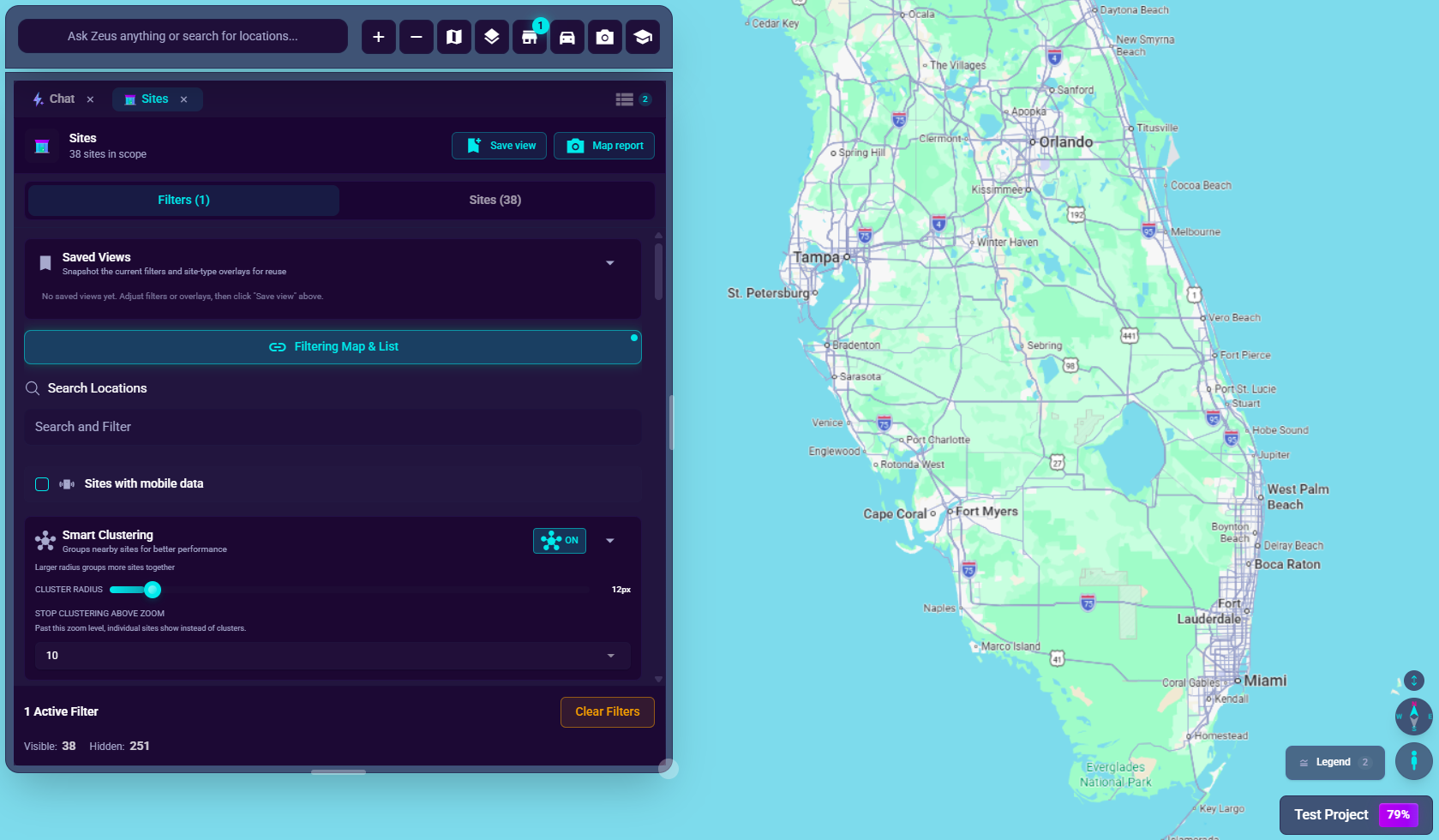
text
┌─────────────────────────────────────┐
│ [Sites] [Location Analytics] [Chat] │
├─────────────────────────────────────┤
│ 🔍 Search and Filter                │  ◄── Type here
├─────────────────────────────────────┤
│ Results appear below...             │
└─────────────────────────────────────┘
Searching with the AI
How to Search
- Click the chat input at the bottom-left
- Type your search (natural language works)
- Press Enter to search
- View results in the AI response
What You Can Search For
By Name
- "Find Store #123"
- "Search for Downtown Dallas location"
- "Where is the Oak Street site?"
By Address
- "Find the location at 123 Main St"
- "Show sites on Commerce Street"
- "Search 75001 zip code"
By City/Region
- "Show me all Dallas locations"
- "Find sites in Texas"
- "What locations are in the Southwest region?"
By Attributes
- "Find proposed sites"
- "Show locations with revenue over $2M"
- "Search for restaurants"
Combined Searches
- "Find proposed sites in Dallas with high revenue"
- "Show me existing stores in Texas that opened in 2024"
Understanding AI Search Results
When the AI finds locations, you'll see:
- List of matching sites with names
- Key details for each (address, type, etc.)
- Option to select and view more details
- Map may zoom to show results
Searching in the Sites Panel
How to Search
- Click the store icon (🏪) in the chat bar
- Find the search box at the top of the Sites panel
- Type your search term
- Results filter as you type
What the Search Box Matches
- Location names
- Addresses
- Site IDs
- Partial matches (type "dal" to find "Dallas")
Browsing Results
- Scroll through the filtered list
- Click a location to select it
- It highlights on the map
- Location Analytics appears in the panel
Search Tips
Be Specific When Possible
❌ "Find the store" (which store?) ✅ "Find Store #123" or "Find the Dallas location on Main Street"
Use Natural Language with AI
You don't need exact syntax:
- "Where's that site in Houston?" works fine
- "Show me the one with high revenue" (if context is clear)
Combine Search with Filters
- Set filters first (e.g., proposed sites only)
- Then search within filtered results
- More precise results
Use Site Mentions (@) for Precision
When you know the exact location:
- Click the @ button in the chat input
- Search and select the location
- Ask your question with the location tagged
What Happens When You Find a Location
From AI Search
- AI lists matching locations
- Click a result to see it on the map
- Analytics panel opens with details
- Map centers on the location
From Sites Panel Search
- Results appear in the list
- Click a location to select
- Marker highlights on map
- Analytics tab shows details
Searching for Multiple Locations
Using the AI
- "Show me all locations in Dallas"
- "Find the top 5 by revenue"
- "List proposed sites opening this quarter"
Using Filters
- Apply filters in the Sites panel
- All matching locations remain visible
- Browse the filtered list
Can't Find a Location?
Try These Steps
- Check spelling of the name/address
- Try partial matches (first few letters)
- Broaden your search (city instead of address)
- Remove filters that might be hiding it
- Ask the AI to help find it
Common Issues
- Filters hiding results: Clear filters and try again
- Wrong project: Check you're in the right project
- New location: Recently added? May need data sync