
Appearance
Using Scorecards
See also (agent workflow):
scorecard-management.mdcovers how the assistant creates, edits, and reorders scorecard sections through chat — including section deletes and weight rebalancing.
Quick Answer
Scorecards are weighted evaluation templates for your project. Open the Scorecards tab from the left sidebar (Locate -> Scorecards) to create or edit them, apply them automatically when you open a site in Location Analytics, and turn them on in Site Sonar to rank Site Sonar results by more than revenue alone.
Where to Open Scorecards
From the App Sidebar (canonical entry point)
The dedicated Scorecards workspace tab is the canonical entry point for creating, editing, deleting, and setting a default scorecard. The "Project Settings -> Scorecards" path that earlier versions of this guide referenced was retired with the project-settings tab.
- Open the App Sidebar on the left.
- Click the Locate product row to expand its sub-items.
- Click Scorecards (icon:
fact_check). - The Scorecards tab opens in your current workspace cell, showing the list of saved scorecards with a New button in the header.
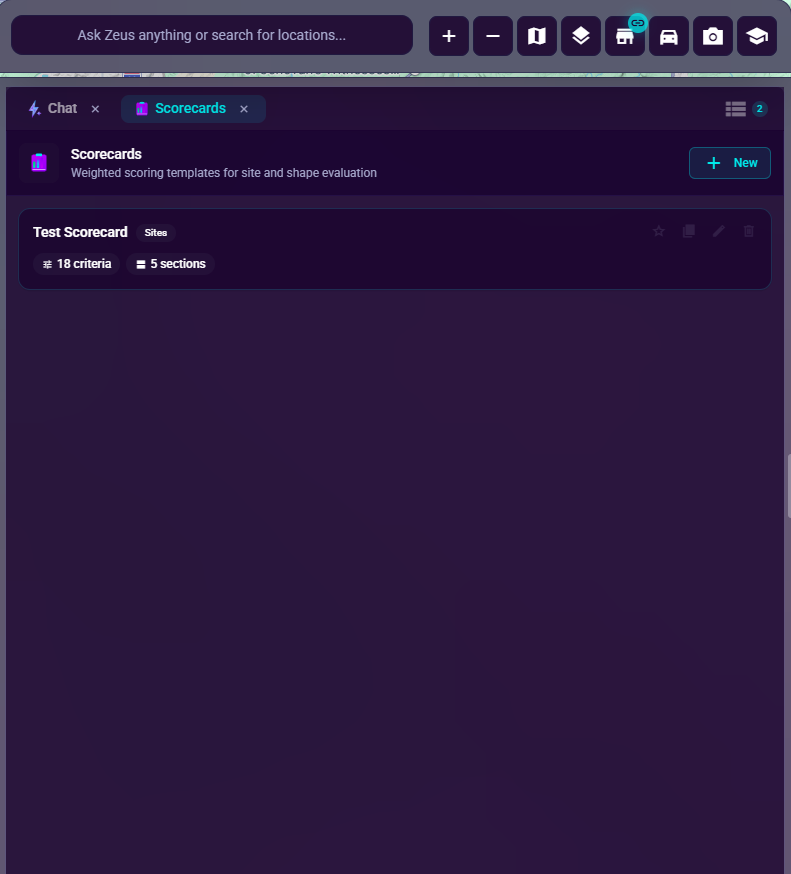
From Location Analytics
When you select a site on the map, Location Analytics opens and renders a Scorecard Evaluation section. The section automatically applies your default scorecard (or the first available scorecard if no default is set) and shows how the site scores against your saved criteria.
If no scorecards exist yet, the section shows a Create Scorecard button that opens the Scorecards tab so you can build your first one.
From Site Sonar
Inside the Site Sonar tab, turn on the Scorecard toggle to rank Sonar results with one of your saved scorecards. With the toggle off, Site Sonar stays in Revenue-only mode.
What a Scorecard Contains
Each scorecard is made of:
- Sections that organize the evaluation into groups
- Criteria inside each section
- Weights for both sections and criteria
- An optional Zeustimate Model weight when you want AI forecast data blended into the final index (available in Enterprise forecasting accounts only; Emerging accounts score using demographic and other criteria without a Zeustimate blend)
- Optional Grade thresholds that override the default A-F index grades for this scorecard's composite index and for each section
Each criterion can:
- Score a location (contribute to the weighted index)
- Filter a location (exclude sites that fall outside the threshold)
- Do both
Numeric criteria compare a location's value against a threshold; categorical criteria match against an expected category.
Creating a Scorecard
Prerequisite: An active project must be open in your workspace. The New button in the Scorecards tab header is disabled when no project is selected; hovering it shows the tooltip "Open a project to create a scorecard." Switch to or open a project first, then create your scorecard.
Option 1: Guided Setup
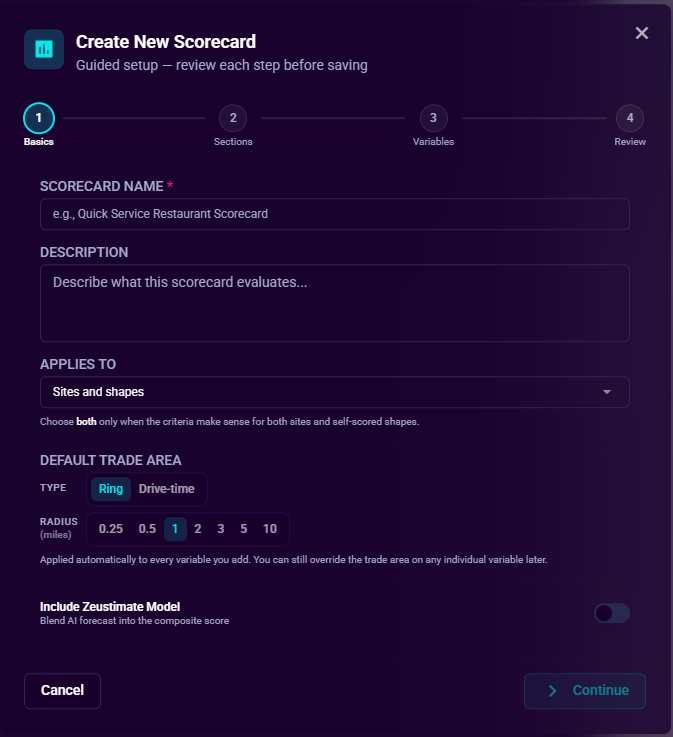
Use Guided Setup if you want a step-by-step wizard.
- Open the Scorecards tab (sidebar -> Locate -> Scorecards).
- Click New in the header.
- Choose Guided Setup in the creation dialog.
- Complete the wizard:
- Basics — name, description, model weighting, and the scorecard's Default Trade Area (see Default Trade Area below).
- Sections — section groups and weights.
- Variables — criteria inside each section. The same criterion editing controls available in Expert Mode are available here, including Use Network Avg to snap a threshold to your network average for the selected variable and trade area.
- Review — confirm everything and optionally set the scorecard as default.
- Click Create Scorecard.
Option 2: Expert Mode
Use Expert Mode when you already know the structure you want.
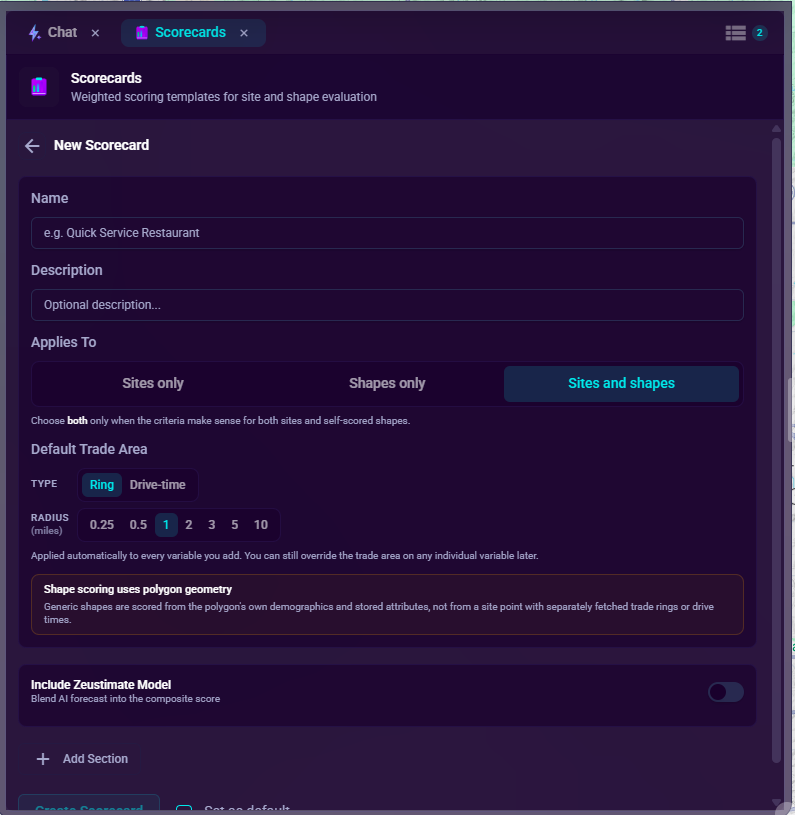
- Open the Scorecards tab.
- Click New, then choose Expert Mode.
- Fill in the name and optional description.
- Turn on Include Zeustimate Model if you want forecast input included.
- Add one or more sections.
- Add criteria and weights inside each section.
- Optionally turn on Set as default.
- Click Create Scorecard.
Default Trade Area
Most criteria that pull demographics, traffic, or competition counts need a trade area — the ring or drive-time footprint the value is measured over. Instead of setting that on every variable, pick a Default Trade Area once at the top of the scorecard form and every new variable inherits it.
The Default Trade Area field appears in both authoring surfaces:
- In Guided Setup, on the Basics step.
- In Expert Mode (the inline builder), near the top of the form.
It uses the same segmented picker as an individual criterion — a Type toggle (Ring or Drive-time) and a Size toggle (e.g. 1 mi / 3 mi / 5 mi for rings, or 5 / 10 / 15 / 20 minute isochrones for drive-time). The helper text reads: "Applied automatically to every variable you add. You can still override the trade area on any individual variable later."
How the default is applied
- The default is stamped on a criterion at the moment you add it. Once a variable exists, it owns its own trade area — later changes to the default do not touch variables you already added.
- Overriding a single variable through its own Trade Area picker changes only that variable and leaves the default (and every other variable) alone.
- If you never set a Default Trade Area, new variables start at Ring / 1 mile, the same fallback used before this field existed.
Apply to all variables
When the scorecard already has at least one criterion, an Apply to all variables button appears next to the Default Trade Area label. Clicking it snaps every existing criterion to the current default in one step. This is opt-in and overwrites any per-variable overrides you set earlier, so use it only when you want a uniform trade area across the whole scorecard.
Editing an existing scorecard
When you open a saved scorecard, the Default Trade Area picker is seeded from the trade area most of its criteria already use (the most common Type + Size pair), so it reflects the scorecard's real shape rather than resetting to Ring / 1 mile. Site-attribute criteria that have no trade area are ignored when inferring this default.
Editing Criteria
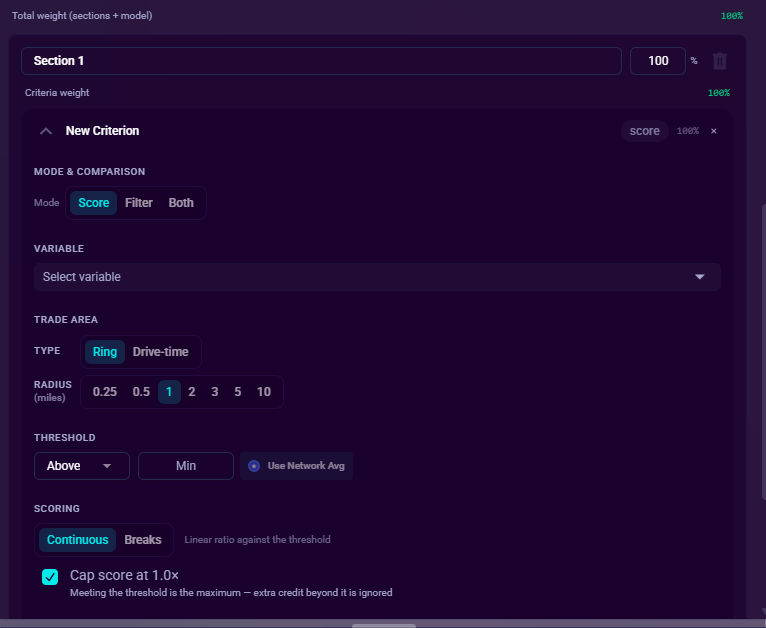
When you expand a criterion in the Expert Mode builder or in the Guided Setup wizard's Variables step, you'll see these sections:
Variable
Pick the variable this criterion evaluates. Use the search box to find variables by name; icons indicate the variable's category. The criterion row stays expanded after you select a variable so you can immediately move to the Trade Area and Threshold settings without re-opening it.
Trade Area
For variables that have a trade-area dimension (demographics, traffic, competition counts, etc.), choose either:
- A ring trade area — a fixed-radius drive distance (e.g. 1 mi, 3 mi, 5 mi). Ring network averages are loaded in a single bulk request when the scorecard first opens; during that initial load the inline caption shows "Computing network avg…" for ring criteria and the Use Network Avg button enables once the fetch completes.
- A drive-time trade area — minutes-of-drive isochrones (e.g. 5-minute, 10-minute, 15-minute drive). Drive-time options are fetched lazily on first use, so the first selection of a given drive-time may pause briefly while the network averages compute.
New criteria start at the scorecard's Default Trade Area; changing a criterion's Trade Area here overrides the default for that one variable only.
Site-attribute criteria (visibility, square footage, etc.) skip the Trade Area section because they don't have one.
Portfolio Distribution
For supported variables, a Portfolio distribution histogram appears between the Trade Area picker and the threshold inputs. It shows the distribution of values across your mature existing sites at the selected trade area, with the slider's handles marking your current threshold so you can tune against the real spread of your portfolio.
- A skeleton renders while drive-time averages are being computed for the selected trade area.
- Hover over the slider for tooltips with exact min/max/outlier counts.
Threshold (or Required Value for categorical criteria)
Numeric criteria use an operator (above, below, between, etc.) and one or two threshold inputs.
Beside the threshold input is a Use Network Avg button. Click it to snap the threshold to the current network average for this variable at the selected trade area (computed across your mature existing sites). When the threshold is sourced from the network average, the section header shows "network avg, as of <timestamp>" so you can tell at a glance that the value is a frozen snapshot rather than a typed override.
Use Network Avg is disabled when no network average is available for the variable at the selected trade area, and it works for both ring and drive-time trade areas.
Filter Failure Behavior
If the criterion's operator marks it as a filter (in addition to a scorer), choose the Fail scope: whether failing this criterion fails the entire scorecard or just zeroes out this row's contribution.
Grade Threshold Overrides
By default, a scorecard's composite index is bucketed into A-F grades using a fixed index scale, independent of the project-wide Revenue Grades. On that scale 1.0 is a perfect score — a site that exactly meets every criterion's target benchmark — and the default grade cut points are:
| Grade | Minimum index |
|---|---|
| A | 0.90 |
| B | 0.80 |
| C | 0.70 |
| D | 0.60 |
| F | below 0.60 |
Scorecard grades are separate from Revenue Grades: changing your project's Revenue Grades does not move these scorecard cut points (see Revenue Grades, which apply to revenue-based site cards, not scorecards). You can override the scorecard cut points per scorecard, and even per section.
Composite Override (Scorecard-level)
In the scorecard builder, expand the Grade thresholds editor at the scorecard level to override the A/B/C/D minimum index values for the scorecard total. The editor shows:
- The current effective defaults (the fixed A-F index cut points above) for reference.
- Saved overrides if you've set any.
- A live preview of where each grade boundary falls on the index axis.
Per-Section Override
Each section also has its own Grade thresholds editor (visible once the section has at least one criterion). Open it from the bottom of the section's criteria list to override grading for that section's sub-score independent of the scorecard total.
Overrides are stored per project + scorecard in your user preferences, so they're personal — they don't change the scorecard for other users.
Click Reset in either editor to drop the override and fall back to defaults.
Managing Existing Scorecards
In the Scorecards list you can:
- Review the number of sections and criteria in each scorecard.
- Click a scorecard card to open it in the builder.
- Use the star action to set or remove the Default scorecard.
- Use the Duplicate action (content_copy icon) to create a full copy of a scorecard, including all its sections and criteria.
- Delete a scorecard you no longer need.
Your default scorecard is the one Location Analytics picks first when no other scorecard is explicitly selected.
Duplicating a Scorecard
- In the Scorecards list, hover over the scorecard you want to copy.
- Click the Duplicate icon (overlapping pages).
- The clone appears at the top of the list, named <original name> (Copy). If a scorecard with that name already exists, the suffix increments: (Copy 2), (Copy 3), and so on.
A duplicated scorecard:
- Contains an exact copy of every section and criterion from the original, with all weights and settings preserved.
- Is never set as default — apply the default yourself if you want the clone to be the active default.
- Shares no data with the original. Changes you make to the clone do not affect the original, and vice versa.
Using Scorecards in Location Analytics
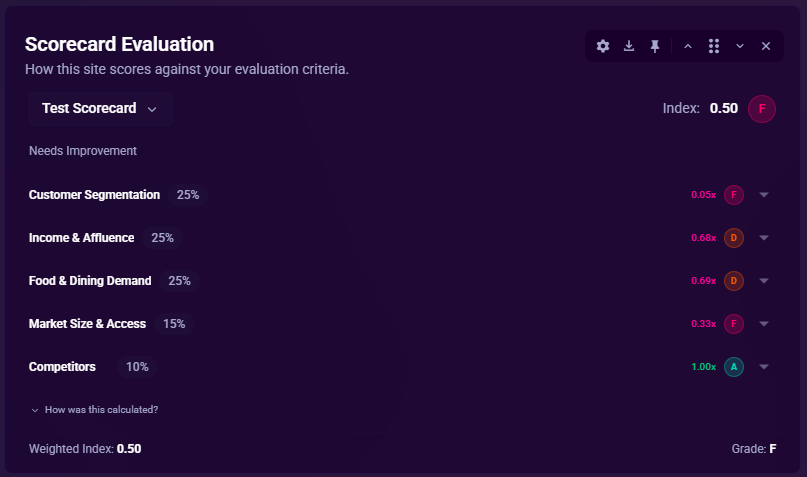
Open any location to see Scorecard Evaluation in the analytics panel.
- The picker dropdown at the top of the section lists your active scorecards. A row of compact pills appears beside the dropdown when you have more than one, so you can switch quickly.
- Click How was this calculated? below the result to expand the math panel: weighted contributions per variable, the Zeustimate Model row (if included), and the grade thresholds the current grade was drawn from.
- The section auto-recomputes whenever you change criteria, weights, or grade overrides in the builder.
- In Emerging (non-forecasting) accounts, the Zeustimate Model row is absent from the How was this calculated? breakdown. Scores are derived from demographic and other criteria using index-based grading, and grade labels (Average, Top Performer, etc.) appear the same way as in forecasting accounts.
This view is useful when you want to:
- Understand how a single site performs against your project criteria.
- Compare evaluation results with revenue, demographics, Smart Comparables, and Forecast Drivers.
- Reuse the same scoring logic across many sites.
Using Scorecards in Site Sonar
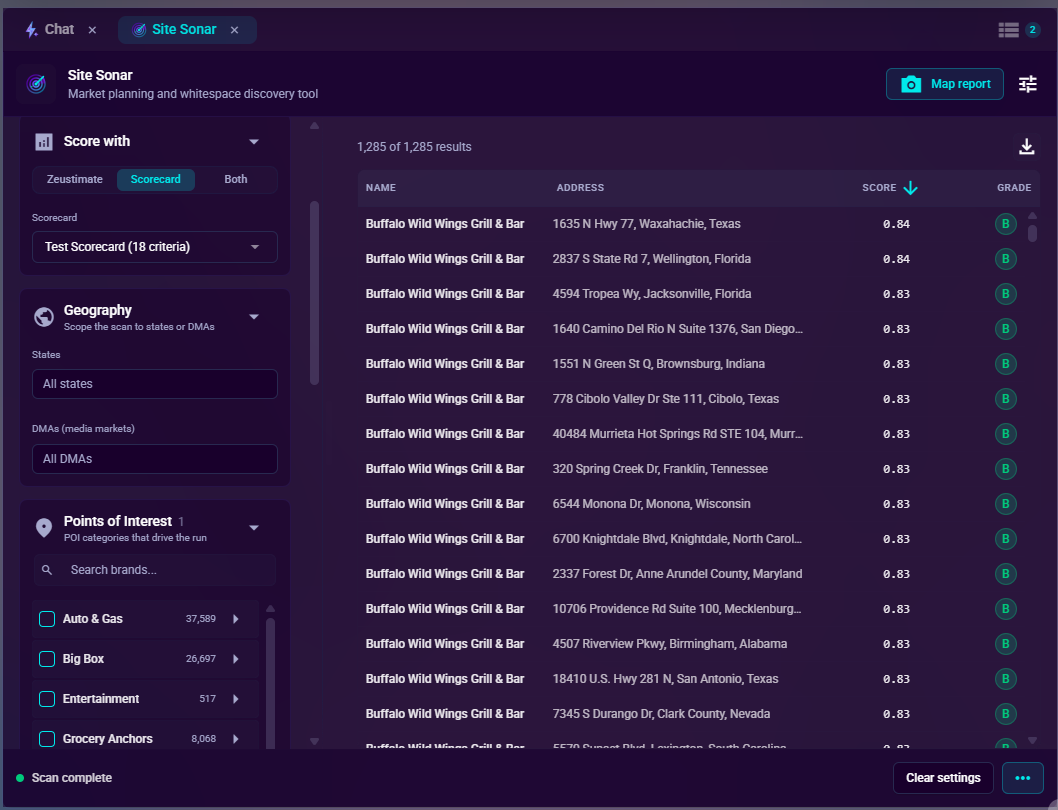
You can also apply a scorecard to Site Sonar results:
- Open Site Sonar.
- Turn on Scorecard.
- Select a scorecard (before or after running — either works).
- Click Apply Changes at the bottom of the panel.
- Review the updated results and use Min Index to narrow the list.
When the Scorecard toggle is off, Site Sonar stays in Revenue-only mode.
Tips
- Start with Guided Setup when building your first scorecard.
- Use a default scorecard for the workflow you run most often.
- Set a Default Trade Area before adding variables when most criteria share the same footprint (for example, a drive-time scorecard) so you don't have to change the picker on every row. Use Apply to all variables if you decide to change the footprint after the fact.
- Keep section weights simple at first. Smaller, clearer scorecards are easier to trust.
- Use the Portfolio distribution histogram on each criterion to set thresholds that actually split your portfolio rather than guessing round numbers.
- Use Use Network Avg when you want a criterion to ask "is this site above or below our network for this variable at this trade area?" without you typing the value yourself.
- Reach for Grade threshold overrides when the default index cut points aren't a good fit for a specific scorecard's index range (for example, a strict screening scorecard where almost every site would otherwise land in C).
- Use Duplicate to create a variant of a working scorecard before experimenting with different weights or criteria — the original stays intact while you iterate on the copy.
- Scorecards built entirely from demographic, attribute, or categorical criteria do not require Zeustimate data and evaluate correctly on all subscription tiers, including Emerging accounts. Add the Zeustimate Model weight only when you want AI revenue-forecast data blended into the final index.
Troubleshooting
The New button is disabled
The New button is disabled when no project is active in your workspace. Open or switch to a project first, then return to the Scorecards tab and click New.
I do not see any scorecards in Site Sonar
Create at least one scorecard from the Scorecards tab first, then return to Site Sonar.
The Scorecard Evaluation section says "No Scorecards"
Click Create Scorecard in the empty state — it opens the Scorecards tab in your current workspace cell so you can build one without losing your selected site.
Use Network Avg is disabled
Use Network Avg works in both Expert Mode and Guided Setup. The button is disabled when there is no network average available for the chosen variable at the chosen trade area.
- For ring trade areas, averages are fetched in bulk when the scorecard first opens. The inline caption shows "Computing network avg…" during that initial load; the button enables once the fetch completes and stats are available.
- For drive-time trade areas, averages are fetched lazily on first selection of a given isochrone. Pick a different trade area or variable, or wait for the compute to finish (the inline caption shows "Computing network avg…" while it runs).
Drive-time trade areas are slow to switch
The first switch to a new drive-time trade area for a variable fetches and computes network averages across your mature sites. Subsequent switches reuse the cached values.
Grade overrides aren't taking effect
Overrides are scoped to your user account for that project + scorecard. Confirm you're in the same project and have the same scorecard selected; if you reset to defaults from the editor, the override is cleared.
What the AI can do for you with this
Zeus.ai Chat can both score sites with an existing scorecard and manage the scorecards themselves. Capabilities (catalog names):
- Scorecard Evaluation (
evaluateScorecard) — score a site or a set of sites against any scorecard in the project, with the same weighted contributions you'd see in Location Analytics. Works on all subscription tiers; criteria that use demographics or attributes do not require Zeustimate. - Scorecard Management (
scorecardManagement) — create, rename, set default, add/remove sections, and add/remove/edit criteria from chat. - Search Demographic Variables (
searchDemographicsVariables) — find the right variable to add as a criterion before you wire it into a section. - Demographic Variable Catalog & Favorites (
demographicsVariables) — list available demographic variables for a project, including your favorites. - Site Sonar (
getSonarResults) — re-rank Site Sonar results with a scorecard's composite index, not just revenue.
Worked example
"Create a Demand section in my expansion scorecard."
The agent uses scorecardManagement to add a new section, then prompts for the section weight and any criteria you want inside it. Follow up with "How does the Main St site score on our expansion scorecard?" and the agent calls evaluateScorecard against the named site. Both prompts are covered by probe-scenarios/multi-skill-chains.mjs.