
Appearance
Using the Chat Composer
Quick Answer
The chat composer is the text input area in the chat bar where you type questions. It includes buttons for voice input, file attachments, site mentions, My Prompts, and model selection.
Where to Find the Chat Composer
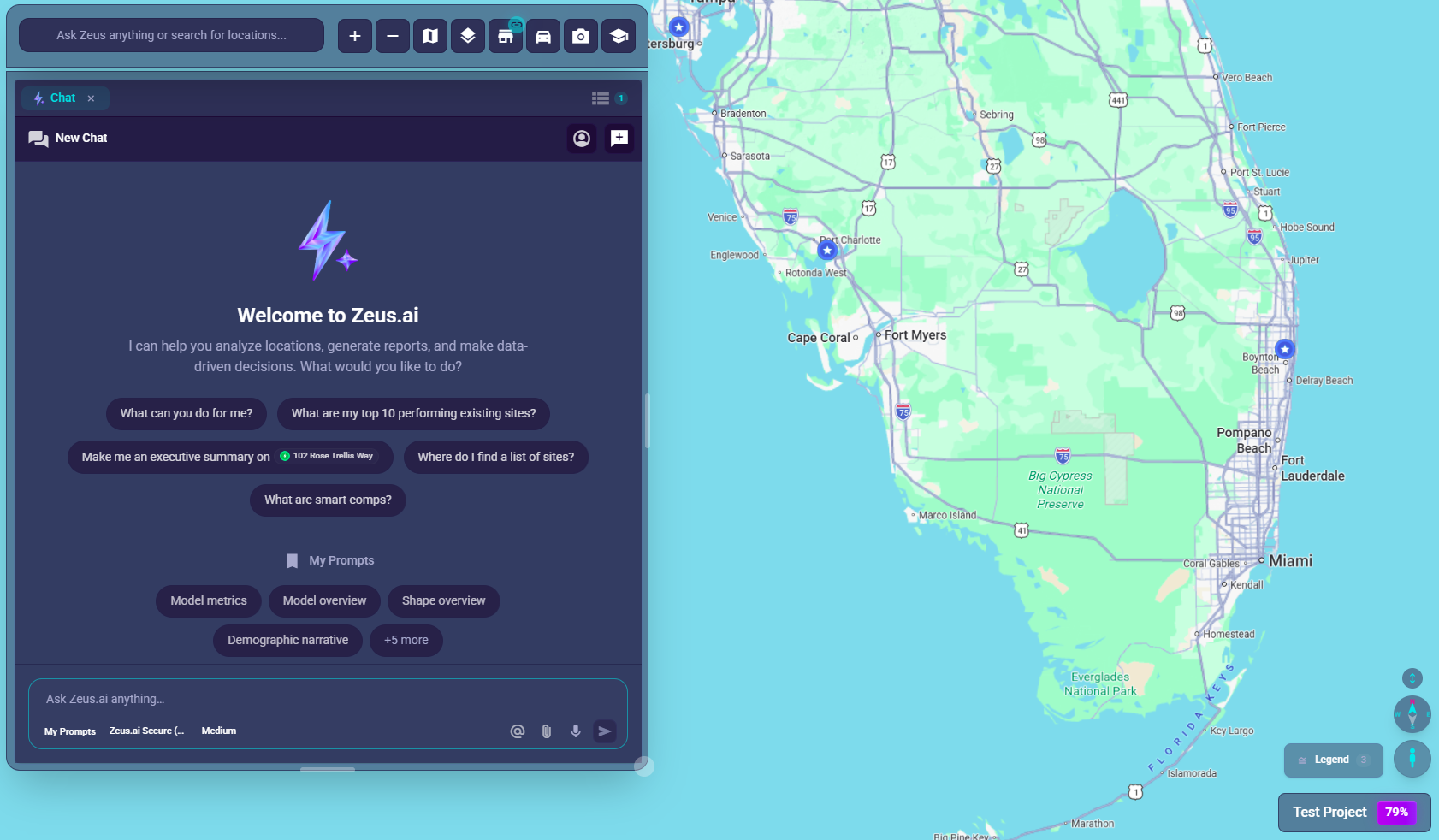
text
Chat Bar (bottom-left of screen):
┌─────────────────────────────────────────────────────────────────────┐
│ [←]                                                                  │
│        ┌──────────────────────────────────────────────────────┐     │
│        │ 📄My Prompts  GPT-5.4 ▼                                │     │
│        │                                                      │     │
│        │ Ask Zeus anything or search for locations... [@][📎][🎤][➤] │
│        │                                       │   │   │  │  │     │
│        └───────────────────────────────────────┴───┴───┴──┴──┘     │
│                                                │   │   │  │        │
│                            Mention site ───────┘   │   │  │        │
│                            Attach file ────────────┘   │  │        │
│                            Voice input ────────────────┘  │        │
│                            Send message ──────────────────┘        │
└─────────────────────────────────────────────────────────────────────┘
Composer Elements
The Text Input Field
What it is: The main area where you type your questions Placeholder text: "Ask Zeus anything or search for locations..." How to use:
- Click anywhere in the input area
- Start typing your question
- Press Enter or click Send to submit
My Prompts Button (📄)
Location: Top-left of composer area Icon: Document icon (description) with "My Prompts" label What it does: Opens your saved prompt tools for quick insert
How to use:
- Click "My Prompts"
- Browse your saved prompts in the
Quick Insertdropdown - Click a prompt to insert it into your message
- Edit if needed, then send
- Click
Manageto open the fullPrompts(Prompt Library) workspace tab
What My Prompts includes:
- Your saved prompts / favorites in the Prompt Library
- Quick access prompts for common tasks
- Personalized shortcuts for frequent queries
Model Selector (GPT-5.4 ▼)
Location: Top-left of composer, next to My Prompts Appearance: Dropdown showing current model name What it does: Lets you choose which AI model to use
Current available models:
- Zeus.ai Secure (Third-Party) (default) — 1M context, text and code; the global chat default
- DeepSeek V4 Pro — 1M context, text and code; max-thinking reasoning
- Zeus.ai Clean Room (🔒 Clean Room subscription) — 1M context, text-only, data-resident
- Zeus.ai Clean Room (GPT-5) (🔒 Clean Room subscription) — 272K context, images + PDFs, data-resident
- Claude Opus 4.8 / Sonnet 4.6 — Anthropic, 1M context, images + PDFs
- Claude Haiku 4.5 — Anthropic, 200K context, fast/cheap
- GPT-5.5 / GPT-5.4 / GPT-5.4 Mini — OpenAI, 1M context each, images + PDFs + URL fetch
- Gemini 3.1 Pro / Gemini 3.5 Flash — Google, 1M context, full multimodal (audio + video)
How to change models:
- Click the model name (e.g., "GPT-5.4")
- Browse models grouped by provider
- Select a different model from the dropdown
- Your next message uses the new model
See Model Selection for the full catalog and recommendations.
Reasoning Effort (Faster ↔ Smarter)
Location: Right of the model pill in the composer Appearance: A small pill showing the current effort level; clicking it opens a 5-notch slider labeled Faster on the left and Smarter on the right
What it does: Controls how much "thinking" time the model spends before responding.
The 5 notches (left → right):
| Notch | When to use |
|---|---|
| Off | Fastest responses; no explicit reasoning |
| Low | Quick answers with a light pass of reasoning |
| Medium | Default — balanced speed and depth |
| High | Deeper reasoning for complex questions |
| Max | Longest thinking budget for the hardest problems |
Your choice is saved on your device and applies to every message until you change it.
Mention Site Button (@)
Location: Right side of input, first icon Icon: @ symbol What it does: Adds a specific location to your message for context
How to use:
- Click the @ button
- Search for a location by name
- Select the location from the list
- A "pill" appears in your message
- Type your question about that location
Example:
- Click @ → Select "Store #123" → Type "What's the Zeustimate for this location?"
- AI knows exactly which location you mean
Attach File Button (📎)
Location: Right side of input, after @ Icon: Paperclip What it does: Upload images or documents to include with your message
Supported files:
- Images (JPG, PNG, GIF, WebP)
- PDFs
- Text files (TXT, CSV)
- Audio files (Gemini 3.1 Pro / Gemini 3.5 Flash)
- Video files (Gemini 3.1 Pro / Gemini 3.5 Flash)
Current upload control limits: Max 20MB per file, up to 10 files attached at once.
How to use:
- Click the paperclip (📎)
- Select a file from your device
- File preview appears in the composer
- Type your question about the file
- Send your message
Or drag and drop:
- Drag a file from your computer
- Drop it on the composer area
- File attaches automatically
Voice Input Button (🎤)
Location: Right side of input, after attach Icon: Microphone What it does: Speak your question instead of typing
How to use:
- Click the microphone (🎤)
- Start speaking when prompted
- Your words appear as text in the input
- Click again or wait for auto-stop
- Edit if needed, then send
Tips for voice:
- Speak clearly and at normal pace
- Works best in quiet environments
- You can edit the transcription before sending
Send/Stop Button (➤ / ⏹️)
Location: Right side of input, far right Icons: Send arrow (➤) or Stop square (⏹️) What it does: Submits your message or stops the AI
States:
- Send (➤): Click to send your message
- Stop (⏹️): Appears when AI is responding - click to stop
How to send:
- Click the send button (➤), OR
- Press Enter on your keyboard
How to stop:
- While AI is responding, click the stop button (⏹️)
- The response stops where it is
Context Token Meter
When you're having a long conversation, you may see:
Location: Near the model selector Appearance: Compact usage indicator / ring What it shows: How much of the AI's available context is being used
- Low fill: Plenty of context space
- High fill: Getting close to limit
- Tip: Start a new thread if context gets full
Composer States
Normal State
- Light border
- Ready for input
- Send button available
Focused State (typing)
- Blue/electric glow border
- Keyboard shortcuts active
- Full functionality
AI Thinking State
- Animated/pulsing border
- Stop button replaces send
- Input may be disabled
Voice Recording State
- Red/recording indicator
- Microphone button highlighted
- Transcript appears as you speak
Smart Enter — One Key, Multiple Routes
The chat bar reads what you typed and routes Enter to the right action. When no item in the dropdown is highlighted, Enter classifies the input and acts on it.
| What you typed | What Enter does |
|---|---|
Coordinates (e.g. 34.0522, -118.2437) | Drops a pin and pans the map. No chat send. |
| Address, ZIP code, city, state, or named area | Pans the map to that area. For exact addresses, also drops a Search pin (pink/red marker) and opens Location Analytics. |
Business name or POI keyword (e.g. Starbucks) | Drops real search pins on the map and opens the Sites tab filtered to them. |
Question-style text (e.g. how's foot traffic?) | Sends the message to the AI assistant as a normal chat turn. |
Plain text that includes an unpicked @token | Sends to chat as plain text. The mention search does not run. |
If you highlighted an item in the dropdown first, Enter selects that item — the classifier is bypassed.
Pins stay inside your project's country. When Enter drops a pin (from coordinates, an exact address, or a business result), the point must fall inside your project's assigned country. Points in another country — or in open water — are blocked with a toast instead of being pinned. See Pins Must Be Inside Your Project Country.
Press Enter to Search — Real Search Pins
Typing a business name and pressing Enter drops real search pins on the map.
- Up to 20 search pins are dropped via the same mechanism as the Sites tab search list.
- The map re-centers on the result area — for example,
Starbucks Philadelphiafrom Tampa flies to Philadelphia. - The Sites tab opens (or activates if already open) and filters the list to search pins only. The map still shows your other pin types.
- Subsequent searches accumulate —
StarbucksthenDunkinleaves 40 pins on the map, up to a 100-pin cap. - Click any row in the Sites tab list → opens Location Analytics for that result.
- Type again in the chat bar to reset the list filter and run a new search.
Multi-Pin Search Preview (Dropdown)
While you are typing a business or POI query, the suggestions dropdown shows a Search results section with the same top results that pressing Enter would pin. You can:
- Click a row to commit just that one place to a search pin and open analytics.
- Hover a row to highlight the matching pin on the map.
- Click the X button in the Search results header to clear all preview pins and close the dropdown.
The dropdown re-anchors when the chat bar grows on focus or shrinks on blur, so it stays glued to the composer's top edge.
Clearing Search Pins
Two ways to clear what Smart Enter dropped on the map:
- Click the X button next to the
Search resultsheader in the dropdown. - Use the Sites tab clear-search control to remove all search-pin entries from the list.
Keyboard Shortcuts
| Shortcut | Action |
|---|---|
| Enter | Smart-route the input (send, pan, drop pins, or pick suggestion) |
| Shift+Enter | New line (without sending) |
| Escape | Cancel / close active input states |
Tips for Better Questions
Be Specific
❌ "Tell me about this location" ✅ "What's the Zeustimate revenue prediction for Store #123?"
Provide Context
❌ "Show me locations" ✅ "Show me proposed locations in Texas with revenue over $1M"
Use Mentions
❌ "Analyze the one I clicked on" ✅ Click @ → Select location → "Analyze this location's demographics"
One Question at a Time
❌ "What's the revenue and demographics and competitors?" ✅ "What's the predicted revenue for this location?" (then follow up)
Troubleshooting
Can't Type in Composer
- Click directly in the input area
- Check if a dialog is blocking it
- Refresh the page if stuck
Send Button Grayed Out
- Type something first (can't send empty)
- Wait if AI is still initializing
- Check your internet connection
Voice Not Working
- Allow microphone permission when prompted
- Check browser microphone settings
- Try a different browser if issues persist
File Won't Attach
- Check file size limits
- Verify file format is supported
- Try a different file