
Appearance
How to Zoom and Pan the Map
Quick Answer
Use your mouse wheel, trackpad, or touch gestures to zoom. You can also use the + and − buttons in the chat bar or mobile controls menu. Drag the map to pan.
Desktop Zoom Methods
Chat Bar Zoom Buttons
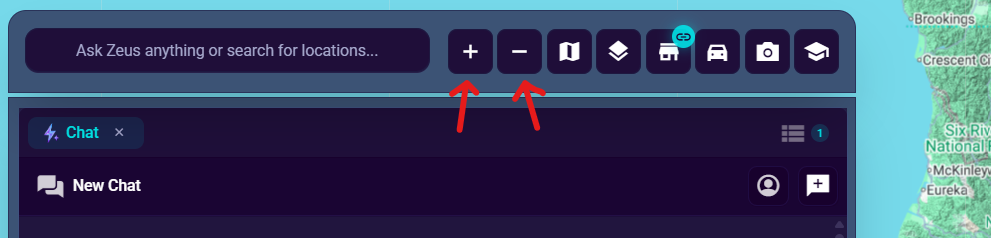
- Click + to zoom in
- Click − to zoom out
Mouse / Trackpad
- Scroll up to zoom in
- Scroll down to zoom out
- Double-click the map to zoom in quickly
- Pinch on a trackpad to zoom smoothly
Panning
- Click and drag the map with a mouse
- Use two-finger drag on a trackpad
- On touch devices, drag with one finger
What Changes As You Zoom
| Zoom Level | What You Usually See |
|---|---|
| Far out | Large clusters and broad market context |
| Medium | Smaller clusters and more individual markers |
| Close in | Individual locations, roads, and local detail |
If you see a cluster with a number, zoom in or click it to inspect that area more closely.
Mobile Zoom
On phones and tablets:
- pinch with two fingers to zoom
- drag with one finger to pan
- double-tap to zoom in
- use the floating Mapping Options button if you want the mobile zoom buttons
Tips
- Keep your cursor over the area you want to zoom toward
- Zoom out first when you feel lost, then zoom back into the target area
- Use clusters as orientation markers when many sites are visible
Troubleshooting
Zoom Isn’t Working
- make sure your pointer is over the map, not over a panel
- click the map once, then try again
- check that a panel or dialog is not intercepting input
Panning Feels Wrong On Trackpad
- use two fingers instead of one
- switch to the chat-bar zoom buttons if the gesture feels inconsistent