
Appearance
Welcome to SiteZeus
Quick Answer
SiteZeus (powered by Zeus.ai) is an intelligent location analytics platform that helps you find, analyze, and evaluate potential franchise and retail locations using AI-powered insights.
What is SiteZeus?
SiteZeus is a mapping and analytics platform designed for location analysts, franchise owners, and business development teams. It combines powerful mapping tools with AI-driven analytics — branded as Zeus.ai inside the app — to help you make data-driven site selection decisions.
Your First Look at the Screen
When you open a project in SiteZeus, here's what you'll see:
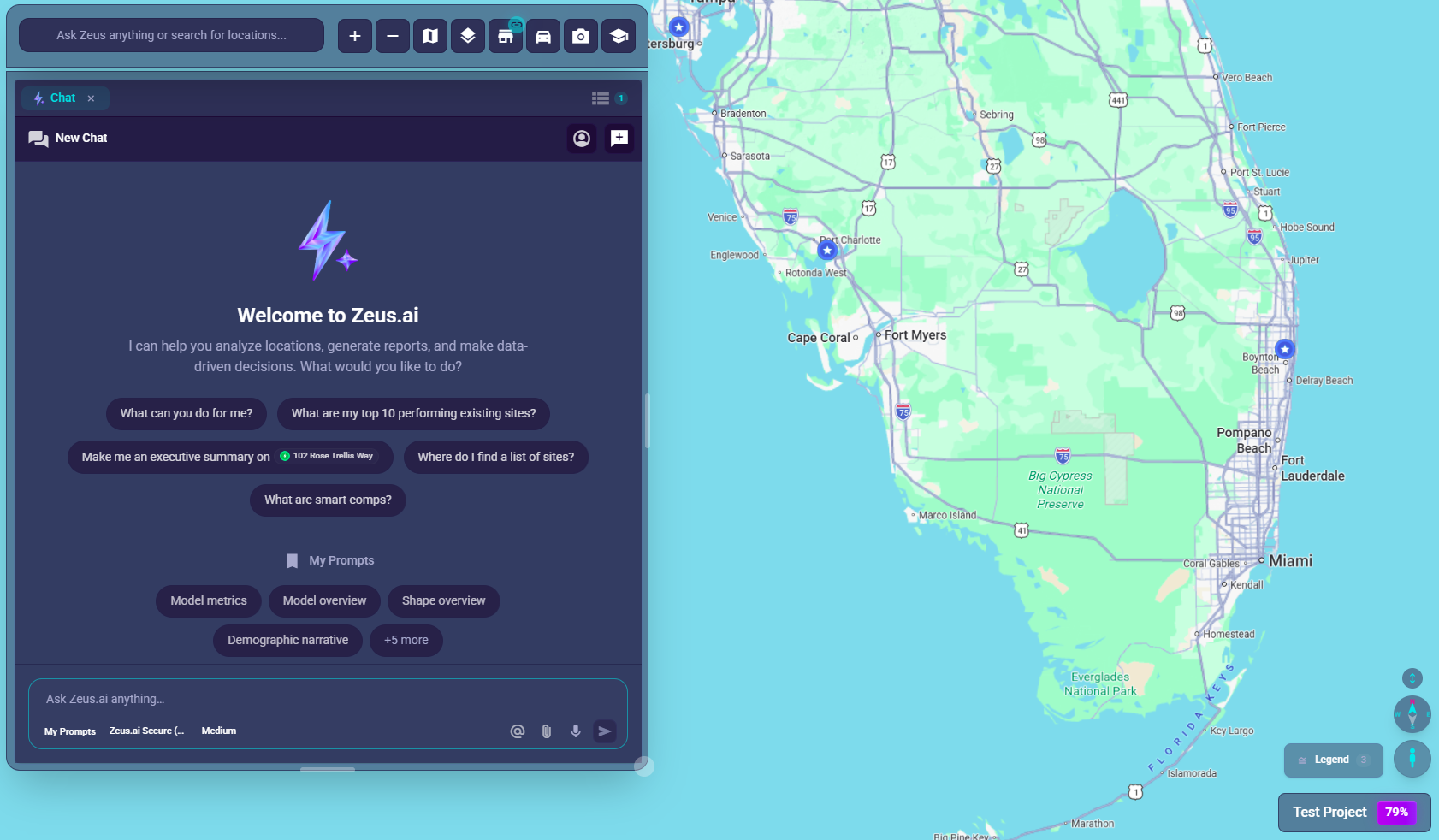
┌────────────────────────────────────────────────────────────┐
│                                                            │
│                    THE MAP                                 │
│              (takes up most of the screen)                 │
│                                                            │
│    • Location markers (pins) show your sites               │
│    • Colored clusters group nearby locations               │
│    • Click any marker to see details                       │
│                                                            │
│                                        [Project Name] ◄────┼── Bottom-right
├─────────────────────┬──────────────────────────────────────┤
│                     │                                      │
│   CHAT BAR          │    WORKSPACE PANELS                  │
│   (bottom-left)     │    (desktop layout dependent)        │
│                     │                                      │
│   • Type questions  │    • Analytics details               │
│   • Zoom controls   │    • Site lists                      │
│   • Map controls    │    • Filter options                  │
│                     │                                      │
└─────────────────────┴──────────────────────────────────────┘
Key Features
📍 Interactive Map
Where: Center of your screen What it does:
- Shows all your locations as markers on a map
- Color-coded markers indicate site types (proposed vs. existing)
- Clusters group nearby locations when zoomed out
- Click markers to see location details
How to use:
- Scroll to zoom in/out
- Click and drag to pan
- Click a marker to select it
🔍 Location Search & Filtering
Where: Chat bar (bottom-left) and Sites workspace panel What it does:
- Search locations by name, address, or criteria
- Filter by revenue, categories, and attributes
- Find proposed and existing sites
How to use:
- Ask the AI: "Show me sites with revenue over $1M"
- Or click the store icon (🏪) to open filters manually
📊 Zeustimate Analytics
Where: Location Analytics panel (opens after selecting a location) What it does:
- AI-powered revenue predictions for proposed sites
- Demographics analysis of the surrounding area
- Competitor mapping within trade area
- Variable importance insights
How to use:
- Click any location marker on the map
- The Analytics tab opens automatically with details
💬 AI Assistant
Where: Chat bar at the bottom-left of your screen What it does:
- Ask questions in natural language
- Get help using the platform
- Analyze specific locations through conversation
- Search and filter by asking
How to use:
- Click the text field in the chat bar
- Type your question and press Enter
- Examples below!
Getting Started - Step by Step
Step 1: Look Around
- Notice the map filling most of your screen
- Find the chat bar - dark control strip at bottom-left
- Look for workspace panels - they may already be open, collapsed, or hidden until you click a marker or a toolbar button
Step 2: Explore the Map
- Scroll your mouse wheel to zoom in/out
- Click and drag to pan around
- Look for markers - colored pins showing locations
- Click a marker to see its details
Step 3: Try the AI Assistant
- Click in the chat input - it says "Ask Zeus anything or search for locations..."
- Type a question - try "What can you help me with?"
- Press Enter to send
- Read the response - AI will guide you!
Step 4: Open the Sites Panel
- Find the store icon (🏪) in the chat bar (right side)
- Click it to open the Sites tab
- Browse the list of all locations
Questions to Try
The AI assistant can help with many tasks. Try asking:
Navigation Help
- "How do I zoom the map?"
- "Where are the filters?"
- "How do I see all my locations?"
Location Analysis
- "Show me proposed sites in Texas"
- "What's the revenue prediction for [site name]?"
- "Compare the top 3 performing locations"
Feature Explanations
- "What is a Zeustimate?"
- "How do I filter by revenue?"
- "What do the different marker colors mean?"
Need Help Anytime?
Just ask the AI! The chat bar is always available at the bottom-left.
Example questions:
- "How do I...?" - Get step-by-step instructions
- "What is...?" - Learn about features and terms
- "Show me..." - Find and analyze locations
- "Why is...?" - Understand analytics insights
Quick Reference: Where Is Everything?
| What You Need | Where to Look |
|---|---|
| Switch products | Left sidebar (Locate, Customer Insights, Build, Sell) |
| Back to Projects | Top of the left sidebar |
| Help & Support | Left sidebar (What's New, Product Tour, Help Center, Feedback, Chat with Support) |
| Your profile / sign out | Bottom of the left sidebar (your initials / name) |
| Type a question | Chat input (bottom of the map area) |
| Zoom the map | + / − buttons in the chat bar, or scroll wheel |
| Filter locations | Sites button (store icon) in the chat bar |
| Change map style | Base Map button (map icon) in the chat bar |
| Adjust layers/overlays | Layers button (layers icon) in the chat bar |
| View traffic | Traffic button in the chat bar |
| Create a map report | Camera icon in the chat bar |
| Open help (in app) | Help Center row in the left sidebar's Help & Support area |
| Location details | Click any marker on the map |
Next Steps
Ready to dive deeper? Check out these guides:
- Understanding the Screen Layout - Learn where everything is
- How to Zoom and Pan - Navigate the map
- Using the AI Chat - Get the most from the assistant
- Understanding Zeustimate - Revenue predictions explained
Welcome aboard! 🚀