
Appearance
Changing Map Themes and Styles
Quick Answer
Click the Base Map button in the chat bar and choose a theme thumbnail. Zeus.ai currently groups themes into Enhanced Vector 3D Themes and Styled Raster Themes.
How to Open Themes
- Click the Base Map button (
map🗺️) in the chat bar on desktop - On mobile, open the floating Mapping Options menu and choose Base Map
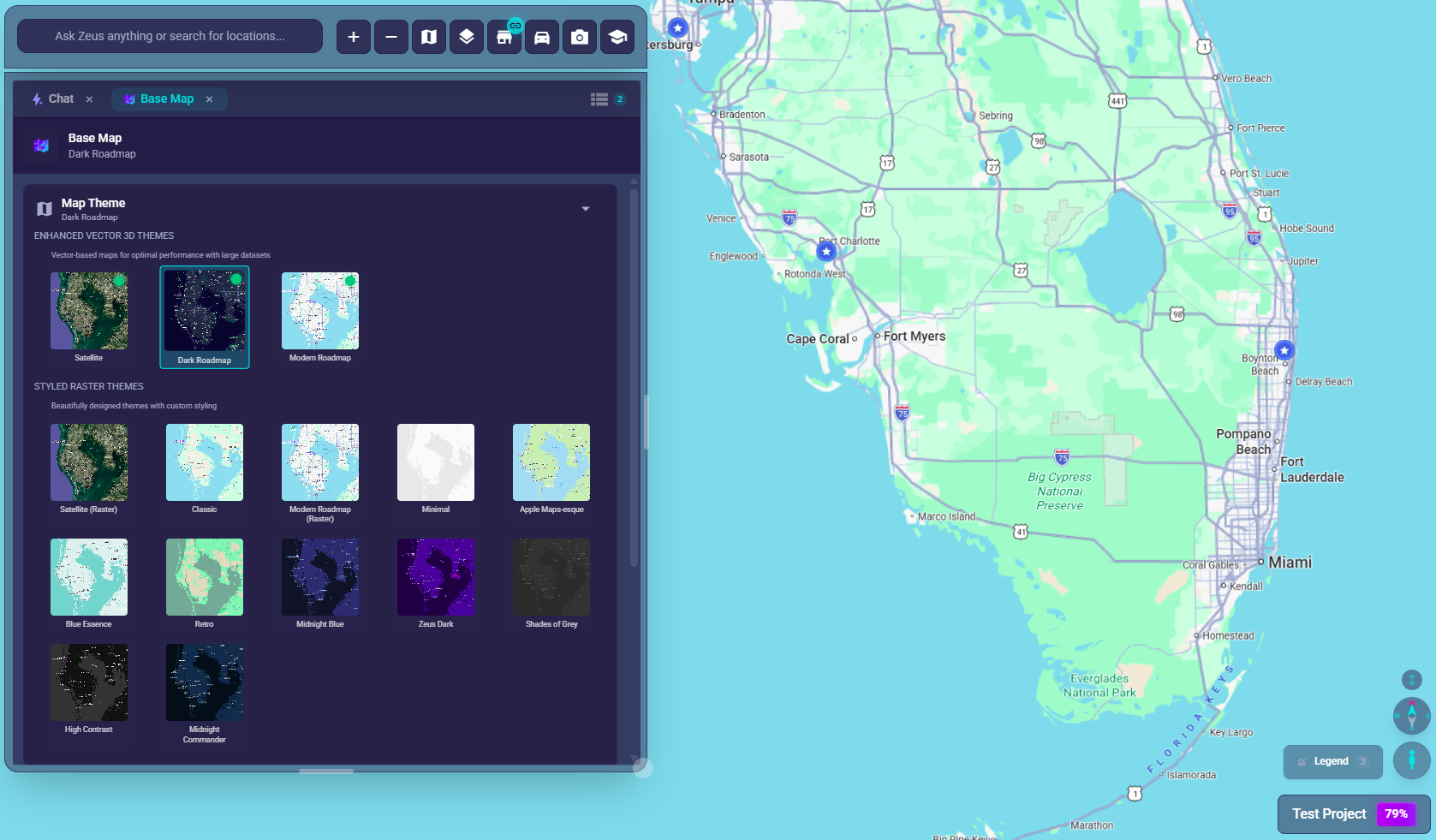
Theme Groups
Enhanced Vector 3D Themes
These are the current vector-theme options shown in the Base Map tab:
SatelliteDark RoadmapModern Roadmap
Vector themes are best when:
- you want better performance with large datasets
- you want 3D-capable map behavior
- you do not need raster-only POI / map-element controls
Styled Raster Themes
The current raster/styled theme group includes themes such as:
Satellite (Raster)ClassicModern Roadmap (Raster)MinimalApple Maps-esqueBlue EssenceRetroMidnight BlueZeus DarkShades of GreyHigh ContrastMidnight Commander
Raster themes are best when:
- you want more styling variety
- you want POI and map-element controls
- you want quick appearance adjustments where supported
Theme Behavior
Vector Themes
- Show a small vector badge in the theme card
- Enable 3D-capable behavior automatically on supported map states
- Do not expose the same POI / map-element controls as raster themes
Raster Themes
- Provide broader styling choices
- Can expose POI and map-feature controls
- May support brightness / saturation / contrast adjustments depending on the theme
Choosing A Theme
- Click the Base Map button in the chat bar
- Browse the theme thumbnails
- Click a theme
- The map updates immediately
Recommended Use Cases
| Use Case | Good Theme Choice |
|---|---|
| Daily work | Dark Roadmap |
| Large datasets | Any vector theme |
| Real-world context | Satellite |
| Traditional roadmap view | Classic |
| Design-heavy presentation look | One of the styled raster themes |
Theme-Related Controls
The Base Map tab can also expose:
- Quick Adjustments like brightness, saturation, and contrast
- Data Layers like traffic, transit, and bicycle
- Map Features and POI controls on supported raster themes
Troubleshooting
Theme Not Changing
- Wait for the map to refresh
- Try another theme to confirm the panel is responding
- Refresh the page if the state looks stuck
3D Controls Missing
- Switch to a supported vector or satellite-compatible theme
- Remember there is no longer a standalone 3D toggle
POI Or Map-Feature Controls Missing
- Those controls are limited on vector themes
- Switch to a raster theme if you need that level of control
Adjustments Disabled
- Not every theme supports adjustments
- Try a raster theme if you need brightness / saturation / contrast controls