
Appearance
Map Controls Reference
Quick Answer
On desktop, the main map controls live in the Zeus.ai chat bar and in the floating on-map control cluster. On mobile, several map controls move into the floating Mapping Options button and its popup menu.
Desktop Control Areas
Chat Bar Controls
The desktop chat bar is the main control strip for:
- Chat input
- Zoom In (
add) - Zoom Out (
remove) - Base Map (
map): opens the Base Map tab (themes, adjustments, data layers, map features) - Layers (
layers): opens the Layers tab (Sites section, Site Sonar, Shapes, Listings overlays) - Sites (
store) - Traffic: toggles the traffic data layer / opens the Traffic tab
- Create map report (
photo_camera): freezes the current map view into an interactive, shareable Map Report - Help (
school)
There is no single "Map Settings" button — Base Map and Layers are two independent buttons that open two independent tabs. Profile access lives in the left sidebar footer, not the chat bar.
On-Map Floating Controls
Depending on map state, the map can also show:
- Compass for 3D-capable map rotation / tilt
- Pegman for Street View entry
- Project badge in the lower-right corner
Mobile Control Areas
On mobile, the layout changes:
- Back moves to the top-left
- Project badge moves to the top-center
- Profile moves to the top-right
- The floating Mapping Options button opens:
- Zoom In
- Zoom Out
- Layers
- Base Map
- Sites
- Map report (creates a Map Report from the current view)
Zoom Controls
Chat Bar Zoom Buttons
- Zoom In (
add): makes the map closer - Zoom Out (
remove): makes the map wider
Other Zoom Methods
| Method | How to Do It |
|---|---|
| Scroll wheel | Scroll over the map |
| Double-click | Double-click the map |
| Pinch | Use two fingers on touch devices |
Layers and Base Map
Zeus.ai used to have a single combined "Map Settings" panel. It's now two independent workspace tabs, each opened by its own chat-bar button — there is no longer one panel with two sub-tabs.
How to Open
- Click the Layers button (
layers📚) in the chat bar to open the Layers tab, or click the Base Map button (map🗺️) to open the Base Map tab - On mobile, tap the floating Mapping Options button, then tap Layers or Base Map
Layers Tab
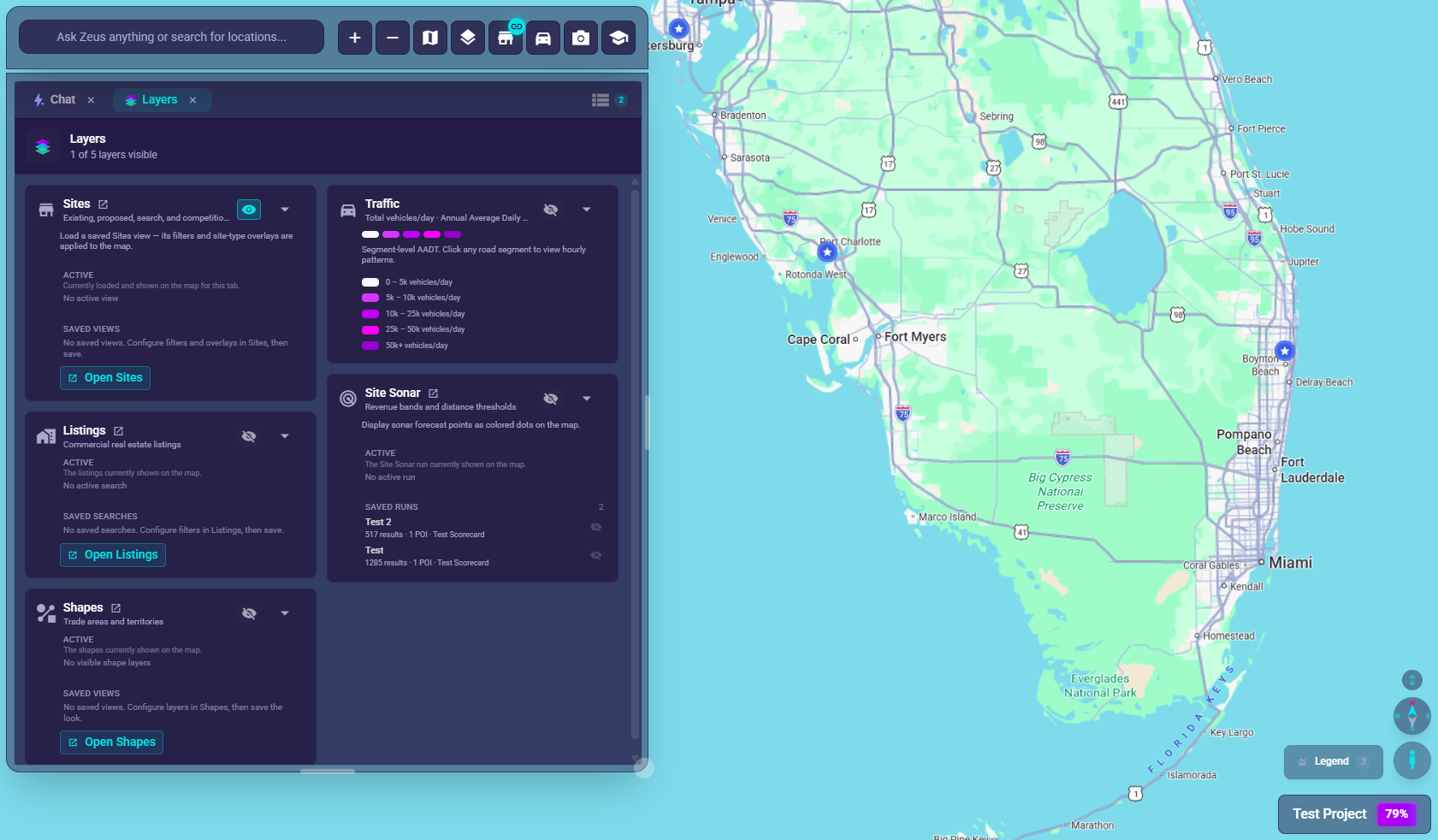
The Layers tab currently centers on:
- Sites (active view + saved views)
- Overlay sections for Site Sonar and Shapes
Smart Clustering, Cluster Radius, and site-type visibility controls have moved to the Sites tab (store icon in the chat bar) — see Smart Clustering. The Heat Map overlay was retired app-wide and no longer appears anywhere.
Base Map Tab
The Base Map tab currently controls:
- Map Themes
- Quick Adjustments (when supported by the active theme)
- Data Layers like traffic / transit / bicycle
- Map Features and POI-related controls on supported raster themes
Important:
- The old standalone
3D Modetoggle is gone - Supported vector and satellite-compatible themes now control 3D behavior automatically
Sites Button
The Sites button opens the workspace tab for:
Filtering Map- Search and filter controls
- Revenue and attribute filters
- The location list
- Sort controls
Mouse And Touch Controls
| Action | Desktop | Mobile / Touch |
|---|---|---|
| Pan | Click and drag | One-finger drag |
| Zoom | Scroll wheel | Pinch |
| Select location | Click marker | Tap marker |
| Quick zoom | Double-click map | Double-tap |
3D-Capable Controls
When a supported theme enables 3D behavior, the map can expose a compass and related controls.
- The compass appears as a floating on-map control
- Rotation / tilt availability depends on the current map theme and mode
- If 3D controls are missing, check the active basemap theme first
Street View Controls
Street View uses a separate floating control:
- Desktop: drag the Pegman button onto the map
- Mobile: tap the Pegman button to enable Street View mode, then tap coverage lines
Troubleshooting
Can’t Find A Control
- Desktop: check the chat bar first
- Mobile: check the floating Mapping Options button
- Some controls only appear in specific map states
3D Controls Not Showing
- Switch to a supported vector or satellite-compatible theme
- Recheck the floating on-map controls
Control Doesn’t Respond
- Make sure another panel or dialog is not intercepting clicks
- Try clicking the map first, then retry
- Refresh the page if needed