
Appearance
Uploading File Attachments
Quick Answer
Click the paperclip / attach button in the chat composer to upload images, PDFs, text files, audio, or video that the AI assistant can analyze alongside your question.
Supported File Types
| Type | Examples | Use Case | Model Support |
|---|---|---|---|
| Images | .jpg, .png, .gif, .webp | Screenshots, maps, photos | All models except the text-only default |
| Documents | Reports, presentations | All models except the text-only default | |
| Text | .txt, .csv and other text-based files | Data files, notes | All chat models (incl. the default) |
| Audio | .mp3, .wav, .m4a | Voice recordings | Gemini 3.1 Pro and Gemini 3.5 Flash |
| Video | .mp4, .mov, .webm | Screen recordings, clips | Gemini 3.1 Pro and Gemini 3.5 Flash |
Note: The default model (Zeus.ai Secure (Third-Party)) is text-only — every other model (Claude, GPT, Gemini) accepts images and PDFs. To attach an image or PDF, first pick one of those from the model selector in the composer. If the active model can't use a file you choose, it's rejected after selection (with a notice), not blocked at the attach button.
Current default limits: Maximum 20MB per file, up to 10 files attached at once in the composer.
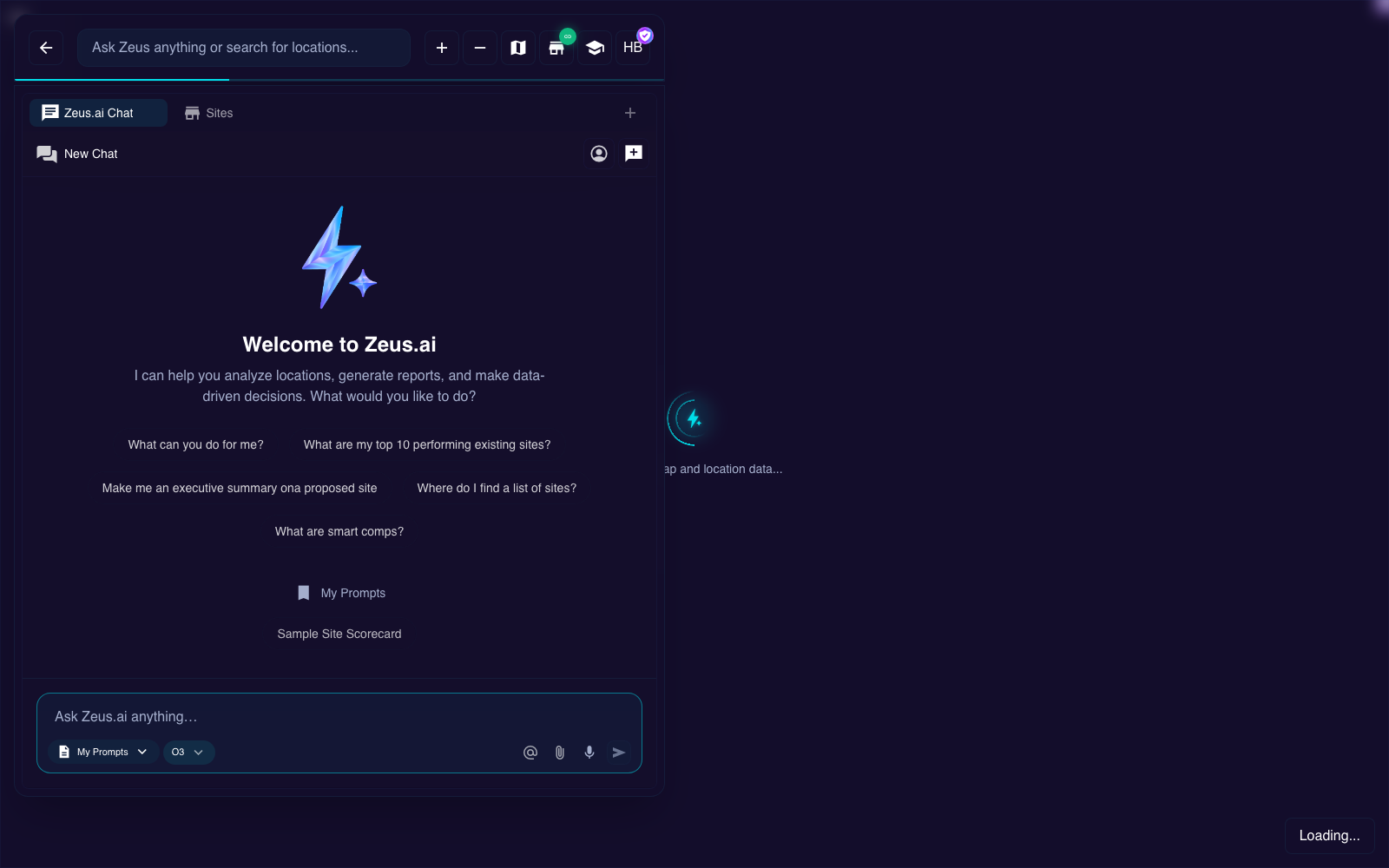
How to Upload Files
Step 1: Click the Attach Button
- Find the 📎 paperclip icon in the chat input area
- Click to open the file picker
- In some flows, you can also drag and drop files directly into the chat area
Step 2: Select Your File
- Navigate to your file in the file picker
- Select one or multiple files
- Click "Open" to attach
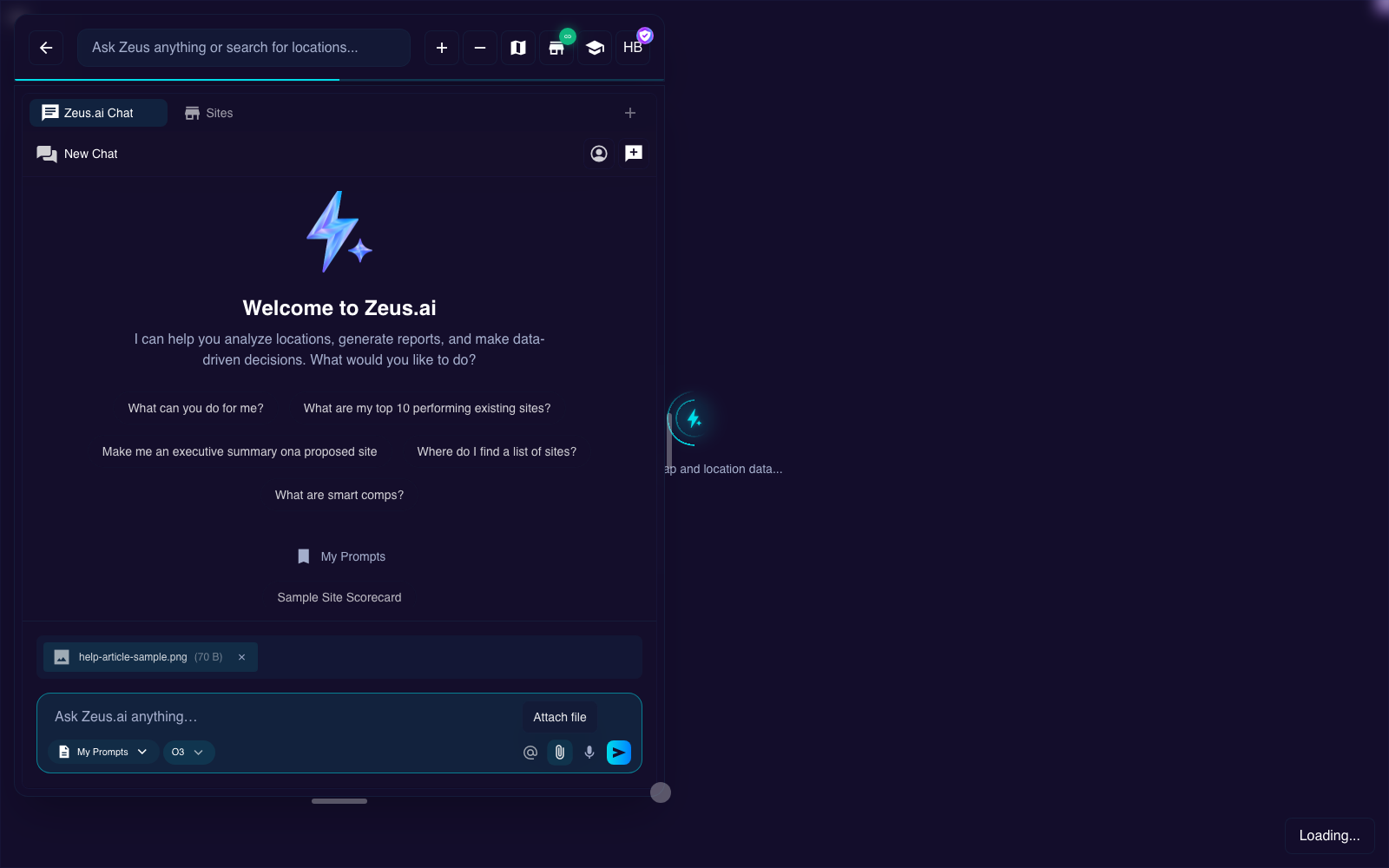
Step 3: Add Your Question
- Type a question or instruction about the file
- Examples:
- "What does this map show?"
- "Analyze this report"
- "Summarize this document"
Step 4: Send
- Click Send or press Enter
- Wait for the file chip / preview row to finish processing
- The assistant will respond with analysis
Tips for File Attachments
For Images
- Screenshots: Great for asking "What am I looking at?"
- Maps: Share location visuals for context
- Charts: Ask for interpretation or explanation
For PDFs
- Keep files under 20MB for the current upload limit
- Multi-page documents may take longer to process
- Ask specific questions about the content
For Data Files
- CSV files can be analyzed for patterns
- Include context about what the data represents
- Ask specific questions about the data
Use Cases
"What's in this screenshot?"
Upload a screenshot of Zeus.ai and ask:
- "What does this metric mean?"
- "How do I get to this screen?"
- "What should I do next?"
"Analyze this report"
Upload a PDF report and ask:
- "Summarize the key findings"
- "What locations are mentioned?"
- "What are the recommendations?"
"Help me understand this data"
Upload a CSV and ask:
- "What patterns do you see?"
- "Which locations have the highest values?"
- "Create a summary of this data"
Limitations
- File size: Maximum 20MB per file in the current upload control
- File count: Maximum 10 files attached at once in the current upload control
- Processing time: Large files take longer
- Some formats: Specialized formats (e.g., .docx, .xlsx) may not be fully supported
- Default model is text-only: Zeus.ai Secure (Third-Party) (the default) does not support image or PDF uploads. Switch to a Claude or GPT model if you need to attach images or PDFs.
- Model dependent: Audio and video support currently appear on
Gemini 3.1 ProandGemini 3.5 Flash
Removing Attachments
To remove an attached file before sending:
- Look for the attached file chip / preview row in the composer
- Click the ✕ or remove button on the file
- The file will be removed from your message
Troubleshooting
File Won't Upload
- Check file size (must be under limit)
- Verify file type is supported
- Try a different browser
- Check internet connection
File Not Being Analyzed
- Add a clear question about the file
- Don't just attach—tell the assistant what you want
- Try a simpler question first