
Appearance
Forecasting Model: Settings
Quick Answer
Settings is where you tune the predictive model behind a project's Zeustimates and rebuild it with your changes. It is one of the two sub-tabs of the Forecasting Model workspace tab (the Predictive Power Center), alongside Analytics. Configure trade areas, variables, outlier accuracy, the Impact model, data bundles, and advanced parameters, then use the floating Rebuild bar to train a fresh model from your settings. The Forecasting Model tab is an Enterprise feature — Emerging accounts see a preview illustration instead of live controls.
Getting There
- Open the left sidebar.
- Under the Locate product group, click Forecasting Model.
- In the tab header, set the toggle to Settings (the other option is Analytics).
You can also open the tab from the workspace Tabs Menu (≡ at the end of the tab strip, Project category). The header toggle remembers whichever sub-tab you last used.
The description under the toggle reads "Tune the model's configuration and rebuild parameters."
Saved Now vs. Applied on Rebuild
Settings has two kinds of controls, and each card tells you which kind it is:
- Applied on your next rebuild — staged changes that only take effect when you rebuild the model (training trade area, variable selection, clustering, outlier accuracy, cross-validation folds, prediction interval, and data-bundle versions). A running total appears on the floating Rebuild bar so you can see how many staged changes are waiting.
- Saved immediately — changes that persist as soon as you make them (forecasting trade area, Impact model category, smart-comps revenue weight, and the Zeustimate confidence toggle).
The Settings Cards
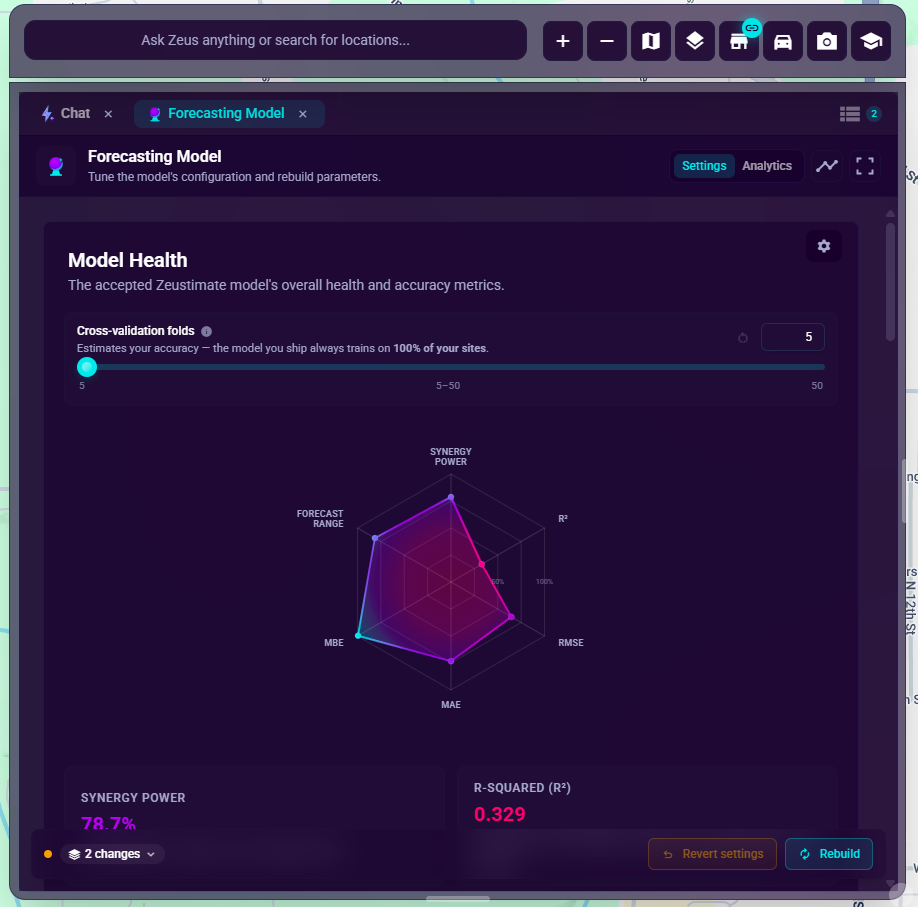
The Settings sub-tab opens with a cross-validation folds control and the Model Health panel at the top, followed by a fixed grid of configuration cards. You can collapse a card, but the cards cannot be reordered or hidden.
Trade Areas
"Manage the trade areas that power your model." Two independent sections:
- Training Trade Area — the trade area your model trains on. Choose Ring, Drive Time, or Custom Set (or let the model auto-select). A Fallback for missing sites option covers sites without the chosen trade area. Training changes are staged and apply on your next model rebuild.
- Forecasting Trade Area — the trade area used to forecast new sites. Choose Let model choose, Ring, or Drive Time. This is saved immediately.
Model Variables
"Manage the variables included in your model." Search and select which variables the model may use (Select all / Unselect all, with a "{n} selected of {n} total" count). The variable table groups variables and shows each one's Typical Impact. Two toggles shape how variables combine:
- Enable Feature Clustering — groups correlated variables together for better explainability and performance. When the accepted model already has clusters, a Keep Current Clusters toggle lets you preserve them.
- Allow Feature Engineering — lets the model combine correlated variables into engineered features. When off, feature-engineered variables are removed on your next rebuild.
Variable changes are staged and apply on your next model rebuild. A Reset button reverts your edits.
Outlier Accuracy
"Sharpen forecasts for your best- and worst-performing sites." (Formerly named "Site Upsampling.") Groups two subsections that work together to sharpen forecasts at the extremes:
- Upsampling — a revenue-distribution histogram with two draggable handles sets a lower quantile (under-performing sites replicated) and an upper quantile (over-performing sites replicated), each with a sampling factor, giving the model more exposure to the tails of your revenue distribution.
- Tail adjustments — a toggle that loosens the model's most extreme predictions so they're less conservative at the tails.
Changes are staged and apply on your next model rebuild.
Impact Model
Card title Impact Model Analytics. "Tune when a customer trip counts as transferred to a new site." Pick the Category that shapes this project's Impact model. This is saved immediately.
Data Bundles
"Manage the data sets that flow into your project and model." (Formerly named "Data Pipeline," to match the Data workspace tab.) Each subscribed data bundle has a version picker with an Up to date or Update available status; a New badge marks unassigned bundles, and bundles your project is not subscribed to are listed under Not subscribed. After changing a version you can Save without rebuilding to persist the choice, or Update & Rebuild to apply it and start a rebuild now.
Advanced Parameters
"Tune the prediction interval and comparable-site weighting." Cross-validation folds and tail adjustments have moved out of this card (see below) — Advanced Parameters now covers:
| Control | What it does | When it applies |
|---|---|---|
| Prediction interval | Width of the forecast confidence band (50%-90%). | On next rebuild |
| Smart-comps revenue weight | How strongly comparable-site revenue influences forecasts (0-10). | Saved immediately |
| Show Zeustimate confidence | Displays the Zeustimate confidence band on forecasts. | Saved immediately |
A Reset button reverts the staged parameters.
Cross-Validation Folds
Not a card in the fixed grid — this control sits at the top of the Settings sub-tab, above the Model Health panel, since fold count drives the k-fold validation that produces every Model Health statistic below it. How many k-fold splits validate the model. Changes are staged and apply on your next model rebuild.
Model Type & Parameters
The Model Type & Parameters card (algorithm choice and hyperparameters) is not currently visible anywhere in the product — it is planned but not yet built, and does not render even as a preview.
Rebuilding the Model
A floating Rebuild bar appears at the bottom of the Settings sub-tab whenever there's something to rebuild — staged settings edits, or project/history changes since the accepted model. It has two actions:
- Rebuild — reads "N changes since your last build," and opens a confirmation before starting. While a rebuild runs, the button reads "Rebuilding…".
- Revert settings (reads "Revert setting" when only one is staged) — discards every card's staged settings edits at once, never the server-tracked data/project changes. The first click arms it (label flips to "Confirm revert?" with a countdown); a second click within the window commits. Disabled when there are no staged settings to revert.
The bar is hidden entirely once there is nothing to rebuild. Live progress and the accept/reject decision (below) render inline above the Model Health panel, driven by the same rebuild state as the bar, so the two never disagree.
What Rebuild does
Clicking Rebuild (when you have pending changes) opens a "Rebuild this model?" confirmation. Confirming starts a fresh rebuild from your current settings and latest data, folding in every staged change at once. A progress panel shows named steps (fetching locations, trade areas, site data, and data bundles, then training and selecting the model) with a percentage. If it fails, the panel shows the error and a Retry rebuild button.
Accepting or rejecting the result
When a rebuild finishes, a New candidate model is ready panel compares the candidate against your current model (Power, R2, RMSE, MAE). Click Accept model to make the candidate power your Zeustimates, or Reject to keep the current model.
Availability
The entire Forecasting Model tab — both Settings and Analytics — is an Enterprise feature. Emerging accounts can open the tab but see a locked preview with a Talk to your account team prompt rather than live settings; no model data loads. Contact your account team to enable it.