
Appearance
Using the Trade Area Selector
Quick Answer
The Trade Area Selector lets you choose the geographic radius used for demographics and analytics. Pick from 7 ring distances (0.25 to 10 miles) or 7 drive-time options (3 to 30 minutes). Each site can use the project default or have its own custom override.
Where to Find the Trade Area Selector
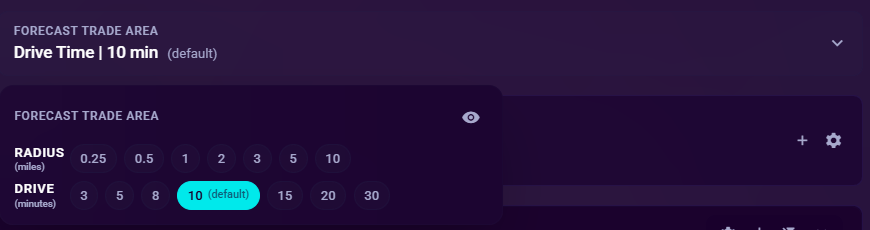
- Select a location on the map
- Open Location Analytics (opens automatically)
- Look for the trade area pills near the top of the analytics panel, above demographics
Trade Area Options
Ring Distances (Miles)
Circular radius around the location:
| Option | Radius |
|---|---|
| 0.25 | Quarter mile |
| 0.5 | Half mile |
| 1 | One mile |
| 2 | Two miles |
| 3 | Three miles |
| 5 | Five miles |
| 10 | Ten miles |
Drive Times (Minutes)
Polygon based on how far you can drive in a given time:
| Option | Drive Time |
|---|---|
| 3 | Three minutes |
| 5 | Five minutes |
| 8 | Eight minutes |
| 10 | Ten minutes |
| 15 | Fifteen minutes |
| 20 | Twenty minutes |
| 30 | Thirty minutes |
How It Works
Selecting a Trade Area
- Find the two rows of pill buttons: "Radius (miles)" and "Drive (minutes)"
- Click a pill to select that trade area
- The active pill highlights in your theme's primary color
- Demographics and analytics reload using the new trade area
- The map updates to show the trade area boundary
Project Default
- One trade area is marked as the project default (shown with a "(default)" label)
- The project default is set in your SiteZeus project configuration
- New locations automatically use the project default
Visual Indicators
- Highlighted pill: Currently active trade area for this site
- "(default)" label: The project-level default option
- Loading state: Pills are disabled while data reloads
Per-Site Trade Area Overrides
You can override the project default for individual locations.
Setting a Custom Override
- Open analytics for a specific location
- Click a different trade area pill than the current default
- The override is saved for that specific site
- Demographics reload with the new radius
How Overrides Work
- The override applies only to the selected location
- Other locations continue using the project default
- The override persists across sessions
- The project default pill still shows "(default)" for reference
Resetting to Default
- Click the pill marked "(default)" to return to the project default
- The per-site override is removed
Trade Area Visualization on Map
When a trade area is active, Zeus.ai displays the boundary on the map:
Ring Trade Areas
- Displayed as a circle centered on the location
- Radius matches the selected mile distance
- Semi-transparent fill with a visible border
Drive-Time Trade Areas
- Displayed as an irregular polygon following road networks
- Shape reflects actual driving distance, not a perfect circle
- Adapts to the road network around the location
Trade Area Display
- The boundary appears when you select a location with analytics open
- Multiple trade areas can be visible if multiple locations are selected
- Trade area colors adapt to the current map theme
Impact on Analytics
The selected trade area affects:
| Analytics Section | How It Changes |
|---|---|
| Demographics | Population, income, and all metrics use the selected trade area boundary (ring radius or drive-time polygon) |
| Variable Importance | Factors are weighted based on the selected trade area |
| Smart Comps | Comparables are found within similar trade areas |
Why Trade Area Matters
- Smaller radius (0.25-1 mile): Focuses on the immediate neighborhood
- Medium radius (2-5 miles): Captures the typical customer draw area
- Larger radius (5-10 miles): Shows broader market characteristics
- Drive time: More realistic than distance for urban areas with varying road speeds
Tips
Choosing the Right Trade Area
- Match the trade area to your business type (fast food = smaller, destination retail = larger)
- Use drive time in urban areas where road density varies
- Use ring distance in suburban/rural areas where roads are more uniform
- Compare demographics across different radii to understand sensitivity
Efficient Workflow
- Set your most common trade area as the project default
- Use per-site overrides only for locations that need a different radius
- The "(default)" label helps you quickly identify customized sites
Troubleshooting
Trade Area Not Changing
- Wait for the loading indicator to complete
- Check your internet connection
- Try clicking the pill again
Demographics Not Updating
- Demographics reload automatically when you change the trade area
- If data appears stale, scroll down to trigger a refresh
- Some trade areas may not have complete demographic coverage
Boundary Not Showing on Map
- Ensure the Shapes toggle is enabled in Map Settings > Layers
- Check that the location is selected and analytics are open
- Zoom to the location to see the boundary