
Appearance
Location Attributes
Quick Answer
Location attributes are project-specific numeric inputs (such as square footage or seating count) attached to a site. Editing them and clicking Recalculate (or Save + Recalculate) updates the Zeustimate forecast to reflect your inputs.
What Are Location Attributes?
Attributes are named numeric values your project uses as inputs to the revenue model. Common examples include square footage, number of seats, or a liquor license flag. The specific attributes available depend on how your project was configured.
Attributes behave differently by site type:
| Site Type | Attribute behavior |
|---|---|
| Existing | Saved to the site record. Changes require Save + Recalculate. |
| Proposed | Same as existing — saved server-side. |
| Search | Session-only (not persisted). Editing triggers Recalculate only. |
| Layer | Same as search — session-only. |
Opening the Attributes Panel
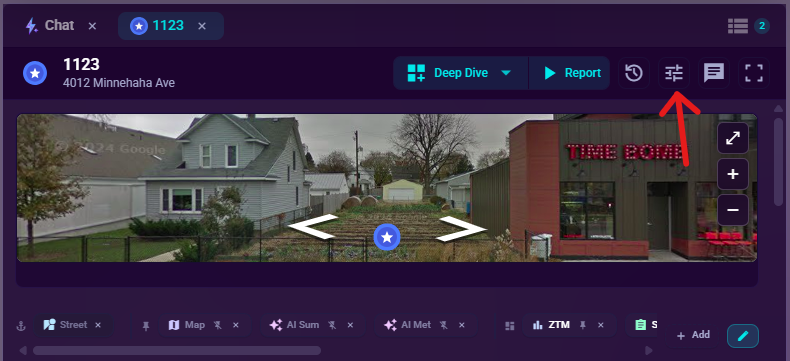
- Select a location on the map (click its marker).
- Open Location Analytics — it opens automatically when you select a site.
- Click the Attributes button in the Location Analytics panel header.
- The attributes panel slides in, showing all attribute names and their current values.
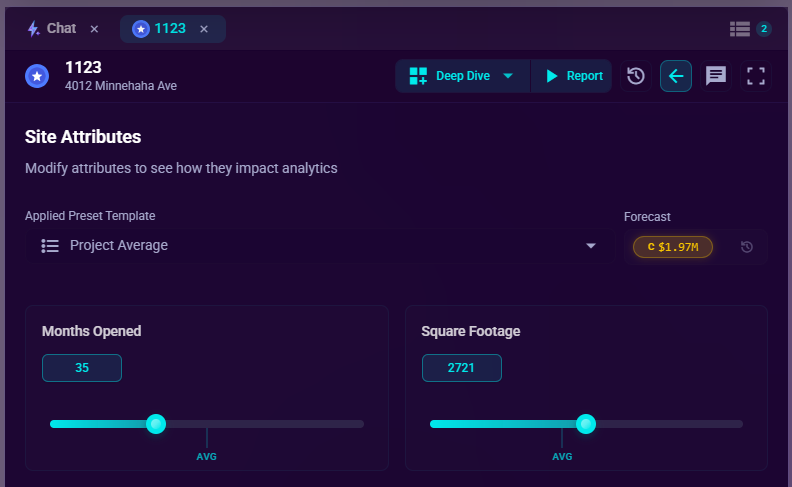
A back arrow in the panel header returns you to the main analytics view. The back arrow stays visible even while a recalculation is loading, so you can navigate away at any time.
Default Values for New and Converted Sites
When you open a site that has no saved attribute values, the panel fills in your project's default template values automatically. The defaults come from your starred template, or the portfolio average (the "Averaged Template") if no template is starred.
For existing and proposed sites converted from a search pin or layer location, the default values are saved to the site record immediately after conversion. The site's forecast starts from a meaningful baseline rather than arriving empty.
Editing Attributes
- Find the attribute in the list.
- Enter a new value in the input field. Dropdown-type attributes show a selector instead.
- Modified attributes are highlighted to show pending changes.
- Click the primary action button to apply.
You can edit multiple attributes before triggering a recalculate.
Action Buttons
Recalculate (Search and Layer sites)
For search pins and layer locations, attributes are not saved to the server. Clicking Recalculate runs a fresh Zeustimate with your edited values for the current session only.
Save + Recalculate (Existing and Proposed sites)
For existing and proposed sites, clicking Save + Recalculate:
- Saves the edited attribute values to the site record.
- Runs a fresh Zeustimate with the updated values.
The button label reflects the current phase:
| Button text | What is happening |
|---|---|
| Save + Recalculate | Ready — click to start |
| Saving... | Writing attribute values to the server |
| Recalculating... | Fetching the updated forecast |
Retry Recalculate
If the save step succeeds but the recalculation fails (for example, due to a brief network issue), the button changes to Retry Recalculate. The attribute values are already saved; clicking retries only the recalculation without re-saving. This state clears once the recalculation completes or you edit another attribute.
Resetting Attributes
The Reset control (shown in the panel footer) restores all attributes to their values at the last save, or to the template defaults if no save has occurred in this session. The analytics forecast refreshes automatically after a reset so the displayed forecast matches the restored values.
Reverting to a Previous Save
After a successful Save + Recalculate, a timestamped pill appears showing when you saved. Clicking Revert on that pill restores the attributes to their values before that save and recalculates the forecast to match.
Tips
- Open multiple Location Analytics tabs to compare attribute scenarios side by side across sites.
- The back button stays visible during recalculation — you can navigate back to the full analytics view while the forecast is still loading.
- If a site shows no attributes and no defaults appear, the project may not have an attribute template configured. Contact your SiteZeus administrator.
Troubleshooting
Save fails or attributes are rejected
Attribute values must be within valid ranges. Numeric attributes must be between 0 and 10,000,000,000. Dropdown-type attributes (such as a seating tier) must match one of the available options for that attribute type.
Button stays on "Retry Recalculate"
Click Retry Recalculate to re-run the forecast. If it fails again, check your internet connection and try refreshing the page. Your attribute values are already saved — retrying will not save again.
Attributes panel shows unexpected or blank defaults
Defaults come from your project's starred template, or the portfolio average if no template is starred. If the defaults look wrong, check your attribute templates in Project Settings or contact your SiteZeus administrator.